
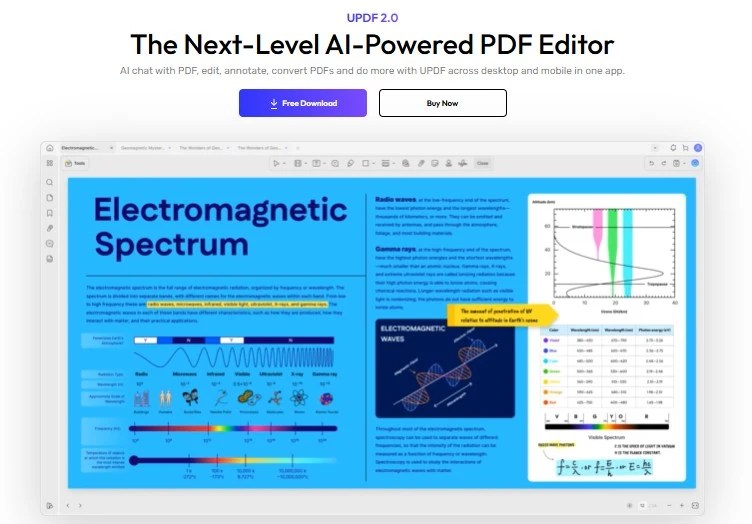
If you work with PDFs even a few times a week, UPDF is one of those tools that can quietly save you hours every month. It combines a clean interface with AI features that go beyond basic editing and annotating.
In this post, let’s quickly break down what it does well, where it falls short, and who will benefit the most from using it in real life rather than just in theory.
What is UPDF?
UPDF is an AI powered PDF editor available on Windows, macOS, iOS and Android, designed to help you read, edit, annotate, sign, organize and convert PDFs from a single interface. It also includes an AI assistant that can summarize, translate, explain and rephrase content inside your PDFs, which is extremely handy for long documents.
Instead of juggling multiple tools for reading, editing, compressing and converting PDFs, UPDF tries to centralize all of that in one place.
Key Advantages of UPDF
- All in one PDF workspace: You can read, edit text and images, annotate, sign, organize pages and convert PDFs to formats like Word, Excel, PowerPoint and images from a single app.
- AI assistant for long PDFs: UPDF AI lets you summarize lengthy PDFs, translate content, explain sections and rephrase text, either via a chat box or by selecting text directly. This is very practical for reports, research papers, manuals and contracts.
- Cross platform consistency: It works on Windows, macOS, iOS and Android, so you can move between laptop, desktop and phone without changing tools.
- Page and file management: You can rotate, insert, extract, copy, paste, delete and reorder pages, bookmark sections, and manage files within the app.
- Modern interface & performance: Recent versions highlight a refreshed interface and a relatively lightweight, fast experience compared to some older bulky PDF suites.
Think of it as a daily driver PDF app that also gives you AI superpowers when you need to tame long or complex documents.
Limitations & Things To Be Aware Of
- Advanced AI is an add on: While UPDF itself can be purchased as a one time or yearly license, the UPDF AI features are sold as a separate add on for individuals and education users. So if you are specifically buying it for AI, check that extra cost.
- Free usage is limited: There is a free option, but feature and usage limits apply, and many advanced capabilities sit behind the Pro and AI plans.
- Not the “industry default” yet: In many large organizations, Adobe Acrobat still dominates, and alternatives such as Wondershare PDFelement, Foxit PDF Editor and Nitro PDF are also strong competitors.
- Some features may vary by platform: As with most multi platform apps, certain advanced options can feel more complete on desktop than mobile, so power users should expect to do heavier work on Windows or macOS.
If you are expecting it to replace every single enterprise feature of Adobe Acrobat in a complex corporate setup, it might not be a perfect one to one replacement. But for most individuals and small teams, it hits the sweet spot.
Who Is UPDF Best Suited For?
- Students & researchers: Great for reading and annotating PDFs, summarizing chapters, translating sections and generating quick explanations while studying.
- Knowledge workers & consultants: Useful for cleaning up reports, editing PDFs sent by clients, signing documents digitally and using AI to quickly digest proposals and contracts.
- Small business owners & freelancers: Handy for invoices, proposals, agreements and internal documentation where you frequently need to edit, sign, merge or convert PDFs.
- Mobile first professionals: If you often review documents on the go, the Android and iOS apps let you annotate, edit basics and use AI from your phone or tablet.
- Anyone tired of heavy, clunky editors: If your current PDF tool feels slow or overkill, UPDF’s lighter, more focused interface can feel like a breath of fresh air.
UPDF vs Other Popular PDF Tools
Here is a quick snapshot of how UPDF compares with some well known PDF tools.
A simple way to decide is to take one real document from your week and try doing your usual tasks in UPDF and in one competitor side by side for 10 minutes. The tool where you felt the least friction is usually the one you should stick with.
Pricing
UPDF offers Pro plans for individuals with yearly and lifetime options, plus separate AI add ons for individuals and education users. There is also a free tier with limited functionality, which is useful to test the workflow before committing.
For the latest and region specific pricing, always check the official page here:
UPDF Pricing.
Alternative Tools You Can Explore
If you want to compare a bit more before deciding, these tools are worth exploring:
- Wondershare PDFelement for a traditional, feature heavy PDF editor.
- Foxit PDF Editor if you value speed and a professional toolset.
- Adobe Acrobat if you need enterprise level features and deep ecosystem integration.
- Nitro PDF for teams focused on collaboration and business workflows.
- PDF XChange Editor if you want a lightweight, freemium editor with strong customization.
When you test them, use your real life documents: invoices, reports, contracts, lecture notes or proposals. The more “boring and real” the file, the clearer your choice will be.
 Just Being Resourceful!
Leave a comment