
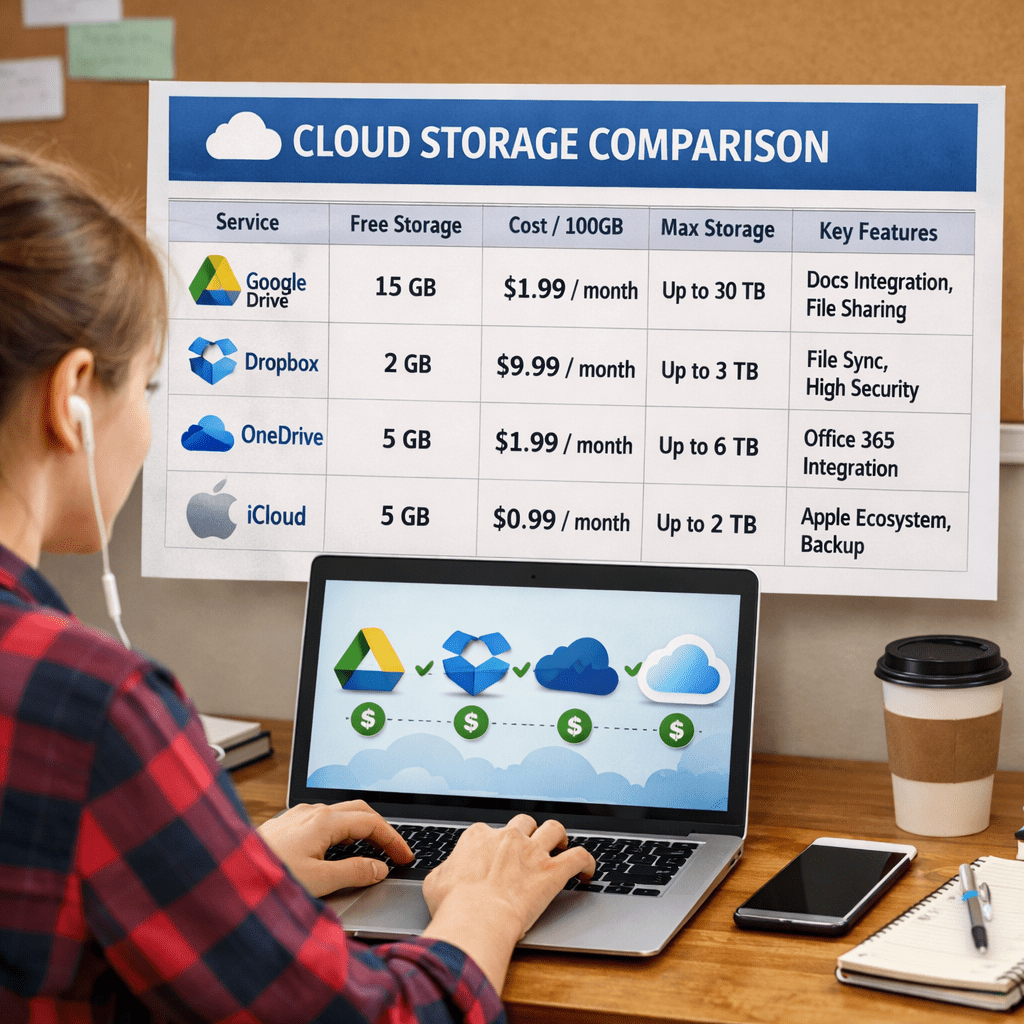
Most students are either paying for storage they don’t need or constantly deleting files to survive on tiny free plans. That’s unnecessary in 2026.
Your student email is essentially a key. It unlocks free software, collaboration tools, and, in many cases, large amounts of cloud storage your institution is already paying for. Some of this requires your school email. Some doesn’t. All of the options below are legitimate and usable without entering a credit card.
If you’re only relying on one or two services today, you’re almost certainly leaving real storage capacity on the table.
Below are seven updated options, how they actually work in 2026, and how to claim each one without getting lost in the fine print.
1. Google Drive (15 GB Personal + Institution-Managed Storage via Google Workspace for Education)
What you get personally (always): A personal Google account still includes 15 GB of free storage, shared across Gmail, Google Drive, and Google Photos. No card, no identity verification: create an account and you’re in.
What your school account may add: If your university runs Google Workspace for Education, your institutional Google account (yourname@school.edu) sits inside a pooled storage model:
- Every qualifying institution gets 100 TB of pooled cloud storage, shared across all users and services (Gmail, Drive, Photos, etc.).
- Admins can add more pooled storage by purchasing specific Education tiers or add-on licenses.
- Your personal quota is not fixed globally. Your school’s IT team decides almost everything: whether to enforce per-user limits, how much, and for whom.
This means you might see something like 20 GB, 50 GB, 100 GB, or “no explicit cap shown” on your student account. The days of guaranteed “unlimited Drive” for education are over.
What you get free in practice:
- 15 GB on a personal Google account
- An institution-defined quota on your school Google account (inside a 100 TB+ pool for the whole institution)
- Google Docs, Sheets, Slides, Forms, and Classroom with real-time collaboration
- Desktop and mobile apps plus offline access
How to check your school Google storage:
Step 1: Log into your institutional Google account (the one with your university domain).
Step 2: Go to drive.google.com.
Step 3: In Drive, look at the bottom-left corner. You’ll see how much storage you’re using and, if your admin set it, a total limit.
Step 4: If the limit looks generous (for example, 50 GB or 100 GB), start using it for coursework, lecture recordings, and project folders.
Step 5: Keep anything personal or long-term (tax documents, personal photos, portfolio work) in your personal Google account, because your school account may be disabled when you graduate.
2. Microsoft OneDrive: 5 GB Personal + Up to 100 GB via Microsoft 365 Education
Personal free plan: A regular Microsoft account gives you 5 GB of OneDrive storage for free. It’s built into Windows and integrates tightly with Office apps, which makes it a natural default for many students.
The bigger win: your school’s Microsoft 365 plan. Most universities now use some flavor of Microsoft 365 Education:
- Office 365 A1 (free): Microsoft is rolling out new storage rules. A1 users are being moved to 100 GB OneDrive per user, with a 100 TB pooled storage cap per tenant.
- Historically, some A1 users saw 1 TB per account. In 2024 and 2025, many institutions were downsized to 100 GB per user.
- Paid A3/A5 plans let schools assign more storage, but it’s controlled entirely by the institution.
What you get free:
- 5 GB on a personal Microsoft account
- Up to 100 GB on your school OneDrive, if your institution has adopted the new caps and assigns you the full allowance
- Web-based Word, Excel, PowerPoint, OneNote, and Teams
- Desktop and mobile OneDrive apps with offline sync and real-time co-authoring
How to access your school OneDrive:
Step 1: Go to office.com.
Step 2: Click “Sign in” and enter your university email (yourname@university.edu or similar).
Step 3: You’ll be redirected to your institution’s login. Sign in with your campus credentials.
Step 4: Click the OneDrive icon. You’ll see your current usage and, if your admin exposes it, your storage limit.
Step 5: Install the OneDrive desktop app to sync one or more folders directly from your laptop.
3. MEGA: 20 GB Free, End-to-End Encrypted
Why MEGA stands out: MEGA continues to offer one of the largest no-credit-card free storage pools among mainstream providers: 20 GB, for free. Every file you store is protected with end-to-end encryption, including on the free plan. MEGA cannot read your data.
This makes MEGA a strong option for students who care about privacy but still need respectable capacity.
What you get free:
- 20 GB base storage (no student verification required)
- End-to-end encrypted sync, web access, and link sharing
- Desktop sync clients and mobile apps
- Optional password-protected links and basic collaboration features
MEGA used to offer generous temporary bonuses for referrals and app installs. Some of those still appear in older guides, but the only figure MEGA consistently guarantees on its official pages in 2026 is 20 GB free. Referral rewards and traffic quotas can and do change.
How to sign up:
Step 1: Go to mega.io.
Step 2: Click “Create account,” enter any email, and set a strong password.
Step 3: Confirm your email and you’re on the 20 GB plan.
Step 4: Install the desktop app if you want automatic backups of specific folders.
One thing to know: Free users face transfer limits and slower speeds, especially for large downloads. MEGA does not publish a simple daily quota anymore. Expect that very heavy usage will be throttled.
4. Box: Institutional Unlimited Storage (With Real-World Limits)
Box is a business-focused cloud storage and collaboration platform heavily used by enterprises and universities. Many students are surprised to learn that their institution quietly provides Box accounts with very large, or effectively unlimited, storage.
What Box for Education usually looks like:
- Many universities deploy Box with very high or unlimited storage quotas for students and staff, as part of enterprise contracts.
- “Unlimited” in Box’s world means no practical cap on total GB per account, but there are still per-file upload limits, sharing policies, and admin controls set by your institution.
What you can get free (if your school is a Box customer):
- Up to “unlimited” cloud storage within your institution’s Box tenant
- Access via web, desktop via Box Drive, and mobile apps
- Built-in previews for documents, PDFs, and media without needing to download them
- Folder sharing and collaboration with classmates and faculty
How to check if your school uses Box:
Step 1: Search “[Your University Name] Box storage” or “[Your University Name] Box login” on the web.
Step 2: If they’re a Box customer, you’ll see a portal URL like university.box.com.
Step 3: Sign in with your institutional credentials to see your account.
Step 4: Install Box Drive to stream files from the cloud without taking local disk space. This is handy when your school gives you essentially unlimited storage but your laptop has a small SSD.
If your school doesn’t have Box: You can sign up for a personal free account at box.com and get 10 GB of storage, with a 250 MB maximum per file upload on the free tier. That works for documents and light usage, but not for large video projects.
5. Internxt: 1 GB Free, Zero-Knowledge Encryption
Internxt is a privacy-first cloud storage platform built around zero-knowledge encryption, meaning your files are encrypted client-side before reaching the servers. Even Internxt cannot view their contents.
However, its free tier in 2026 is much smaller than older blog posts suggest.
Current free plan (2026):
- 1 GB of free encrypted storage, no credit card required
- The same privacy model as paid plans, intended as a trial or for a small set of sensitive files
- Desktop and mobile apps available
Some sites still reference older Internxt offers like 10 GB base or 50 GB via referrals, but Internxt’s own documentation consistently describes 1 GB free as the baseline today.
How to sign up and use it well:
Step 1: Go to internxt.com.
Step 2: Create an account with any email and verify it.
Step 3: Install the desktop or mobile app if you want sync. Encryption happens on your device before upload.
Step 4: Use Internxt as a secure vault for a small set of high-sensitivity items, such as government IDs, key research documents, and legal or medical paperwork.
6. Proton Drive: Up to 5 GB Free (Plus Private Mail, VPN, and Calendar)
Proton is a Swiss company that builds encrypted services: Proton Mail, Proton Drive, Proton VPN, and Proton Calendar. All of them are designed around privacy and zero-knowledge encryption.
The capacity on the free plan has changed significantly since early Proton days.
As of 2026:
- Proton Drive Free gives you 2 GB of encrypted storage by default, and up to 5 GB if you complete three setup actions within 30 days (upload a file, create a share link, and add a recovery method).
- Proton Mail Free has 1 GB of its own storage pool, separate from Drive.
- That means you can have up to 5 GB encrypted Drive storage plus 1 GB for Mail on the free tier.
What you get free:
- Up to 5 GB zero-knowledge encrypted cloud storage on Proton Drive
- End-to-end encrypted email with a @proton.me address
- Proton Calendar and access to Proton Docs for real-time collaboration
- A limited free Proton VPN tier, enough for basic secure browsing
How to sign up:
Step 1: Go to proton.me and create a free account.
Step 2: Pick a Proton email address and password. You don’t need to share personal details.
Step 3: Click “Drive” to start using Proton Drive.
Step 4: Complete the three simple actions to unlock the full 5 GB if you need it.
How to use it effectively: Proton is best treated as a high-security safe, not your general dump for everything. Put your thesis drafts, scanned IDs, contracts, medical records, or anything you absolutely do not want exposed here, and offload more routine files to services like Google Drive or OneDrive.
7. TeraBox: 1 TB Free (Read This Carefully Before You Sign Up)
TeraBox is the outlier: a cloud service that headlines 1 TB of free storage. It’s operated by a Japan-registered company with strong ties to Baidu’s ecosystem, and privacy-conscious users and reviewers have scrutinized it heavily.
What you get on the free plan:
- 1 TB (1,024 GB) of advertised free storage
- Up to 4 GB per file on uploads for free users
- Mobile apps and a Windows desktop client
- Basic photo/video backup and sharing
Independent testing confirms the free tier is real but constrained:
- Transfer speeds are noticeably slower than mainstream providers.
- Video streaming quality is restricted to 480p playback on free accounts.
- The app shows ads and limits things like simultaneous downloads and sharing actions.
- Community reports in 2026 indicate that part of that 1 TB may be time-limited bonus space, with only a fraction being permanent storage and the rest expiring after a set period.
What this means for students: TeraBox is not a good place for sensitive data. It lacks client-side zero-knowledge encryption, and its privacy posture is weaker than Proton, Internxt, or MEGA. It is potentially useful as a bulk cold-storage archive for non-sensitive items like lecture recordings, non-confidential PDFs, course videos, and personal media you don’t mind being theoretically visible to the provider.
How to sign up:
Step 1: Go to terabox.com.
Step 2: Register with an email or third-party login and verify your account.
Step 3: Install the app or use the web interface to upload large, non-sensitive files.
Updated Snapshot: 2026 Free Storage at a Glance
| Service | Free Storage (2026) | Student-Specific? | Credit Card? | Encryption | Best For |
|---|---|---|---|---|---|
| Google Drive | 15 GB personal + institution-defined within 100 TB pooled | Yes, via Google Workspace for Education | No | Standard (server-side) | Coursework, collaboration, Docs/Slides |
| OneDrive | 5 GB personal + up to 100 GB via M365 A1 (admin-set) | Yes, via Microsoft 365 Education | No | Standard (server-side) | Office files, Windows integration |
| MEGA | 20 GB free | No | No | End-to-end encrypted | Private storage with decent free capacity |
| Box | 10 GB personal (250 MB per file); institutional “unlimited” at partner schools | Yes, if your university is a Box customer | No | Standard (enterprise controls) | Bulk storage at participating universities |
| Internxt | 1 GB free | No | No | Zero-knowledge, client-side | Small set of highly sensitive documents |
| Proton Drive | 2 to 5 GB Drive (plus 1 GB Mail, separate pool) | Some education programs exist | No | Zero-knowledge, client-side | High-sensitivity files, privacy-first suite |
| TeraBox | Advertised 1 TB, part potentially time-limited | No | No | Standard (no client-side) | Bulk non-sensitive media and archives |
How to Stack These Without Losing Your Mind
You don’t have to pick just one service. A simple, zero-cost setup in 2026 can look like this:
For everyday coursework and collaboration: Use whatever your institution standardizes on. Google Drive via Google Workspace for Education or OneDrive via Microsoft 365. These are where group projects, shared docs, and classroom workflows naturally live.
For sensitive research and personal documents: Use Proton Drive for up to 5 GB of zero-knowledge storage and Proton Mail for secure email, or Internxt if you prefer its ecosystem.
For privacy plus large free capacity: Use MEGA for encrypted backups of notes, exports of your institutional content, and other files where both space and privacy matter.
For bulk, non-sensitive archives: Use TeraBox as a giant cold-storage bin for lectures, non-confidential PDFs, and personal media you’re comfortable storing with a provider that does not offer client-side encryption and may treat part of its 1 TB as time-limited.
Collectively, you can easily pass 1 TB of effective free storage across providers, as long as you split your content intelligently between “needs privacy” and “just needs space.”
The single most valuable step most students skip is logging into their institutional Google or Microsoft account and checking the actual storage quota their admin has set. Your school is already paying for these platforms. It’s worth knowing exactly how much of that space you’re currently using and how much is just sitting there, empty.
Found a storage deal your university offers that’s not on this list? Drop it in the comments. The best tips on this blog always come from readers.
 Just Being Resourceful!
Leave a comment