
Most AI tools sit in a separate tab, waiting for you to copy something over, ask a question, and manually do something with the answer.
Google just changed that.
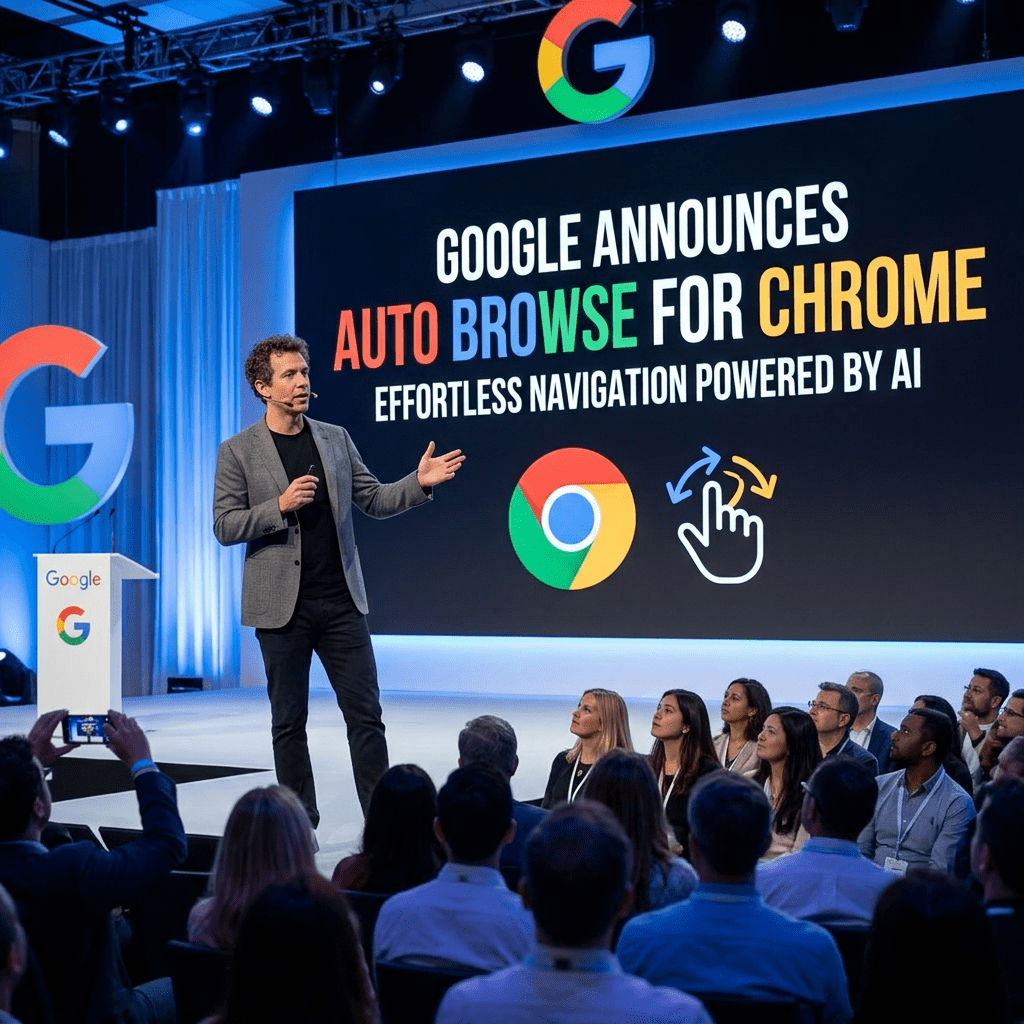
At Google Cloud Next on April 22, 2026, the company announced a feature called auto browse for Chrome. Instead of you switching between tabs and summarising things for an AI, Gemini reads your open tabs itself and takes action on your behalf, right inside the browser.
This is a meaningful step beyond what Chrome’s AI could do before. Let’s break it down.
What Auto Browse Actually Does
Here’s the simplest way to think about it: Gemini now understands what’s happening across all your open tabs at once, and can use that live context to complete tasks for you.
Not hypothetical tasks. Real work ones.
According to TechCrunch, Google suggests auto browse could be used for things like pulling information from a Google Doc and entering it into your company’s CRM, comparing vendor pricing across multiple open tabs without you manually reading each one, summarising a candidate’s portfolio before a job interview, and extracting key data from a competitor’s product page.
These aren’t demo-day examples. These are things people spend real chunks of their day doing right now, manually.
One Thing That Won’t Change: You’re Still in Charge
Google is clear about this, and it matters.
Auto browse will not take final actions on your behalf without your review. There’s a human in the loop at every step. Gemini does the heavy lifting, surfaces the work it’s done, and you confirm before anything is submitted, sent, or saved.
Think of it less like an autonomous agent doing things behind your back, and more like a very fast assistant who preps everything and waits for your sign-off.
That’s a reasonable design choice. Especially for enterprise use cases where a wrong CRM entry or a booking made in error has real consequences.
How to Use Auto Browse (Step by Step)
Auto browse is being rolled out to Google Workspace users in the US first. If your organisation uses Workspace, here’s how to get started.
Step 1: Check with your IT administrator
Auto browse is enabled at the organisational level via a Chrome policy. Your IT team needs to switch it on. Share this post with them if they haven’t heard about it yet. The relevant policy details are on Google’s support page here.
Step 2: Open Chrome and make sure you’re signed into your Google Workspace account
Auto browse works through Gemini in Chrome. You need to be signed in with your Workspace account, not a personal Google account.
Step 3: Open the Gemini side panel
Click the Gemini icon in your Chrome toolbar. This opens the side panel you’d normally use to ask questions about a page or summarise content.
Step 4: Tell Gemini what you need done across your tabs
You can describe a task in plain language. For example: “I have the candidate’s portfolio open in one tab and our interview scorecard open in another. Summarise their key strengths and fill in the relevant fields.” Gemini reads both tabs and prepares the output for you to review.
Step 5: Review and confirm before anything is submitted
This is the human-in-the-loop moment. Gemini will show you what it’s prepared. You check it, make any changes you want, and then confirm. Nothing gets submitted without your say.
Step 6: Save your most useful workflows as Skills
If you find yourself doing the same type of task repeatedly, save it as a Skill. Type a forward slash ( / ) in the Gemini panel to pull up your saved Skills, or click the plus sign ( + ) to browse and select one. Same mechanic as the consumer Skills feature, but built for work workflows.
What About Data Privacy?
This is the question most people have, and Google answers it directly.
Your organisation’s prompts will not be used to train Google’s AI models. That’s a specific commitment, and it matters for enterprise adoption. Given that Meta made headlines recently for recording employee keystrokes to train its own models, Google’s explicit privacy stance here is worth noting.
The Shadow IT Feature: Google Is Playing Chess Here
Here’s the part that didn’t get as much attention but probably should.
Alongside auto browse, Google is expanding its Shadow IT risk detection inside Chrome Enterprise Premium. It gives IT teams visibility into every AI tool and SaaS service being used across the organisation, whether sanctioned or not. That includes browser extensions, third-party AI agents, and any service showing what Google calls “anomalous agent activity.”
On the surface, this is a security feature. And it genuinely is useful for security.
But what it also means is that Google is giving IT teams the tools to identify and potentially block any competing AI tools that employees are using without official approval. Think: a team that signed up for a third-party AI browsing tool on their own, a department using an unsanctioned AI note-taker, someone running a browser extension that touches sensitive company data.
Google is positioning itself as both the AI doing the work and the gatekeeper deciding which other AI tools get to operate. That’s a significant advantage to build right into the browser.
IT Teams Also Get Their Own AI Summary
One small detail worth mentioning: IT administrators now get a Gemini Summary of Chrome Enterprise release notes. Instead of manually reading through changelogs, they get an AI-generated digest that highlights critical changes, new policies, upcoming deprecations, and recommended actions.
For anyone managing Chrome across a large organisation, that’s a genuine time-saver.
The Bigger Security Picture
Google also announced an expanded partnership with Okta to add more protections against session hijacking, along with upgraded security controls for browser extensions and a new Microsoft Information Protection (MIP) integration that helps organisations enforce consistent security policies across their browser environment.
None of this is the flashiest news from Google Cloud Next. But it signals that Google is treating Chrome not just as a browsing tool, but as a managed enterprise security layer.
What This Actually Means for You
If you’re an individual contributor at a company using Google Workspace, the most practical takeaway is this: a chunk of the tab-switching, data-copying, and manual entry work you do today may soon be something you just describe to Gemini and review before confirming.
If you’re a manager or IT lead, the bigger question is whether to enable this and how quickly. The human-in-the-loop design reduces risk. The data privacy commitment helps with compliance. But you’ll want to understand how auto browse interacts with your CRM, your HR tools, and any other sensitive systems your team accesses in the browser.
If you’re a competitor to Google in the enterprise AI space, the Shadow IT detection piece is what you should be paying closest attention to.
A Genuine Caveat Worth Keeping In Mind
There’s a study worth referencing here. Harvard Business Review reported in February 2026 that AI tools are not reducing workloads in practice. They’re intensifying them. The promise is that you’ll have more time for strategic thinking. The reality in many organisations is that freed-up time just becomes capacity for more tasks.
Auto browse won’t solve that problem by itself. That’s a management and culture issue, not a technology one.
But if you’re someone who controls how you use your own time, tools like this genuinely do give you back minutes and hours. The key is choosing to use that time well, rather than just absorbing more work.
Who Gets It and When
Auto browse is available now to Google Workspace users in the US. It requires an administrator to enable it via policy. The Skills functionality works the same way the consumer version does. Chrome Enterprise Premium is required for the Shadow IT detection features.
No confirmed date yet for expansion beyond the US, but given Google’s pace on Chrome updates in 2026, it’s likely coming to other regions before long.
Read the full TechCrunch report here.
If you found this useful, forward it to someone on your team who’s still manually copying data between tabs. It takes a minute to share and might save them a lot more than that.


Leave a Reply