
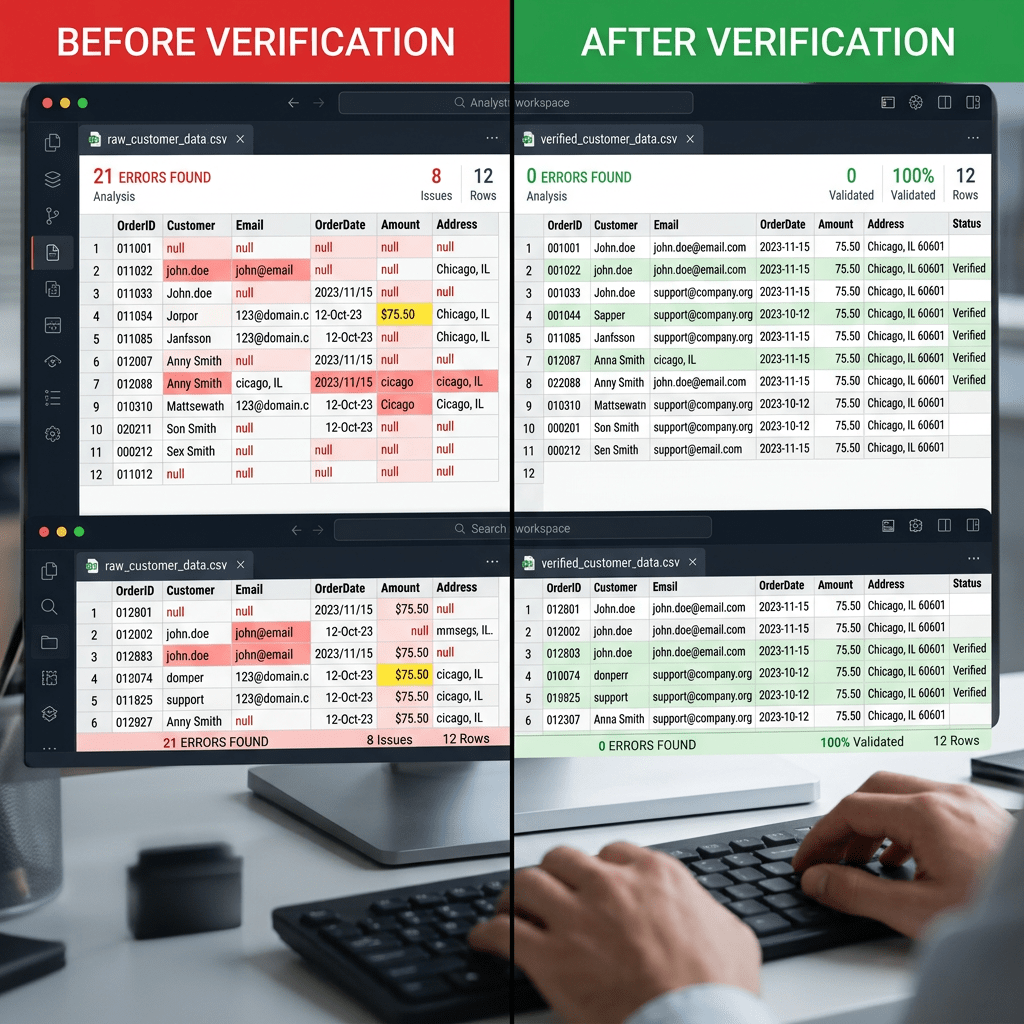
Here’s a problem most people doing cold outreach don’t talk about: your copy isn’t the reason your emails aren’t getting replies. The reason is simpler and more frustrating. You’re emailing addresses that don’t exist.
Bad email addresses kill campaigns before they start. High bounce rates damage your sender reputation. A damaged sender reputation means even your good emails start landing in spam. And the whole thing spirals quietly while you’re busy tweaking subject lines.
What you actually need is a way to verify that the email addresses you have are real, live, and deliverable before you send a single message.
There’s now a free, open-source Claude skill that does exactly this. You give it a CSV with names and company names. It figures out the corporate domain, generates the most common email formats, verifies which ones actually exist, and hands you back a clean, verified list. The whole thing runs inside Claude Code without you touching a line of code yourself.
This post shows you exactly how to set it up and use it, step by step.
What This Skill Actually Does
The skill is called Cold Email Verifier. It lives inside a free, open-source registry of Claude skills called OpenDirectory, built by Varnan-Tech. You don’t need to write any code to use it. You just install it into Claude Code, point it at your CSV, and let it run.
Here’s what happens under the hood:
- Domain lookup. For each row in your CSV, Claude looks up the company’s official corporate domain using the free Clearbit API.
- Name cleaning. It strips punctuation from first and last names so the permutations are formatted correctly.
- Email permutation generation. It generates the three most common corporate email formats:
first@domain,first.last@domain, andfirstlast@domain. - Deliverability verification. Each permutation is checked to see whether it actually exists and is live. Addresses that fail get dropped. Addresses that pass move forward.
- Clean CSV output. The verified addresses get written back into a new CSV, ready to import into your sending tool.
The result is a lead list where you know, with high confidence, that every email address you’re sending to is real. That’s not a small thing. Most outbound teams are working with lists that are 20 to 40 percent bad addresses without realising it.
What You Need Before You Start
You need three things to run this:
- Node.js installed on your computer. This is a free tool that runs JavaScript and comes with a command called
npx, which you’ll use to install the skill. Download it from nodejs.org if you don’t have it. - Claude Code. This is Anthropic’s terminal-based AI agent. Get started at claude.ai/code.
- A ValidEmail.co API key. This is the recommended verification engine. Free to sign up, and comes with 50 verification credits on the free tier. Enough to test and verify a small list right away. Get your key at validmail.co.
Your CSV file also needs to have these exact column headers: First Name, Last Name, and Company Name. That’s all the skill needs to do its job.
Step-by-Step: How to Install and Run the Cold Email Verifier
Step 1: Open your terminal
On a Mac, press Command + Space and search for “Terminal.” On Windows, press Windows + R, type cmd, and hit Enter.
Step 2: Install the skill
Paste the following command into your terminal and hit Enter:
npx "@opendirectory.dev/skills" install cold-email-verifier --target claude
This downloads the Cold Email Verifier skill from the OpenDirectory registry and installs it into your Claude Code environment. You only need to do this once.
If you prefer to install directly inside Claude Code using the native plugin system, run these two commands in the Claude Code terminal instead:
/plugin marketplace add Varnan-Tech/opendirectory
/plugin install opendirectory-gtm-skills@opendirectory-marketplace
Step 3: Set your ValidEmail.co API key
Run this command in your terminal, replacing the placeholder with your actual key:
export VALIDEMAIL_API_KEY="your_api_key_here"
This stores your key for the current terminal session. You’ll need to run it again each time you open a new terminal window, unless you add it to your environment permanently.
Step 4: Prepare your CSV file
Open your lead list and make sure it has exactly these three column headers:
- First Name
- Last Name
- Company Name
Save it as a .csv file. No email addresses, no phone numbers, no LinkedIn URLs required. Just names and company names.
Step 5: Run the verifier
Navigate to the folder where your CSV is saved, then run:
python scripts/email_verifier.py --input leads.csv --output verified_leads.csv --mode validemail
Replace leads.csv with your actual input filename and verified_leads.csv with whatever you want the output file to be called.
Claude reads the CSV, runs the domain lookups, generates the email permutations, verifies each one, and writes the clean results to your output file. Depending on the size of your list, this takes anywhere from a few seconds to a couple of minutes.
Step 6: Open your output file
Open verified_leads.csv. You’ll see only the email addresses that passed verification. These are live, deliverable addresses. Import them into your sending tool and you’re ready to go.
What If You Want a Fully Free, Self-Hosted Option?
If you’d rather not use ValidEmail.co, the skill also supports Reacher, a free, open-source email verification backend you can host yourself.
To use it, host the Reacher Docker container on a cloud provider like AWS, GCP, or Hetzner. One important caveat: your cloud provider must have outbound Port 25 open. Most residential internet providers block Port 25, so running Reacher on your laptop will produce unreliable results. Use cloud hosting for this one.
Once your Reacher backend is live, the command is:
python scripts/email_verifier.py --input leads.csv --output verified_leads.csv --mode reacher-http --reacher-url "http://your-server-ip:8080/v0/check_email"
For most people starting out, ValidEmail.co’s free tier is the easier path. Come back to the self-hosted route once your list sizes grow beyond what the free credits cover.
Why This Matters More Than Copy Optimisation
Most people treat deliverability as something you fix with warm-up tools and careful sending limits. That’s part of it. But the bigger problem, and the one that gets ignored, is list quality.
Every hard bounce signals to mail servers that you don’t maintain your list. Too many bounces and your domain gets flagged. Once your sender reputation drops, it doesn’t recover quickly. Your reply rates fall across every campaign, not just the ones with bad addresses.
Verifying before you send is the fix. Not after. Not reactively when you notice your open rates dropped. Before the first message goes out.
What makes this skill genuinely useful is that it builds the address itself rather than trusting that someone else’s database is current. It finds the domain, generates the likely format, and then checks whether the specific mailbox actually exists. That’s a more reliable process than importing a list and hoping for the best.
Quick Reference: Commands at a Glance
| Command | What It Does |
|---|---|
npx "@opendirectory.dev/skills" list | Shows all available skills in the OpenDirectory registry |
npx "@opendirectory.dev/skills" install cold-email-verifier --target claude | Installs the Cold Email Verifier skill for Claude Code |
export VALIDEMAIL_API_KEY="your_key" | Sets your ValidEmail.co API key for the current terminal session |
python scripts/email_verifier.py --input leads.csv --output verified.csv --mode validemail | Runs verification on your lead list using ValidEmail.co |
Where to Get Everything
- OpenDirectory on GitHub (free, open-source, MIT licence)
- Cold Email Verifier on LobeHub Skills Marketplace
- ValidEmail.co (recommended verification engine, 50 free credits on signup)
- Reacher on GitHub (free, self-hosted alternative)
- Download Node.js
The skill is free. The source code is public. You can inspect exactly what it does before running it on your data.
If this helped, share it with someone doing cold outreach who keeps wondering why their bounce rate is high. The answer is almost always the list, not the copy.


Leave a Reply