
Most people who tried Claude Design for the first time went in with one question: can this thing actually replace my design workflow?
Here’s the honest answer. It will not replace Figma for your senior designers. But for everyone else — the founders building pitch decks at midnight, the product managers sketching wireframes before a sprint review, the marketers who need a landing page yesterday — it changes the game completely.
We covered the launch in a previous post. This one goes deeper. It covers how to actually use it well, the specific prompts that work, what makes it genuinely game-changing (not just impressive), and the real limitations you should know before you spend time on it.
Let’s get into it.
What You Are Actually Working With
Claude Design lives at claude.ai/design. It is powered by Claude Opus 4.7, Anthropic’s most capable vision model, and it is available to Pro, Max, Team, and Enterprise subscribers. Free tier users cannot access it.
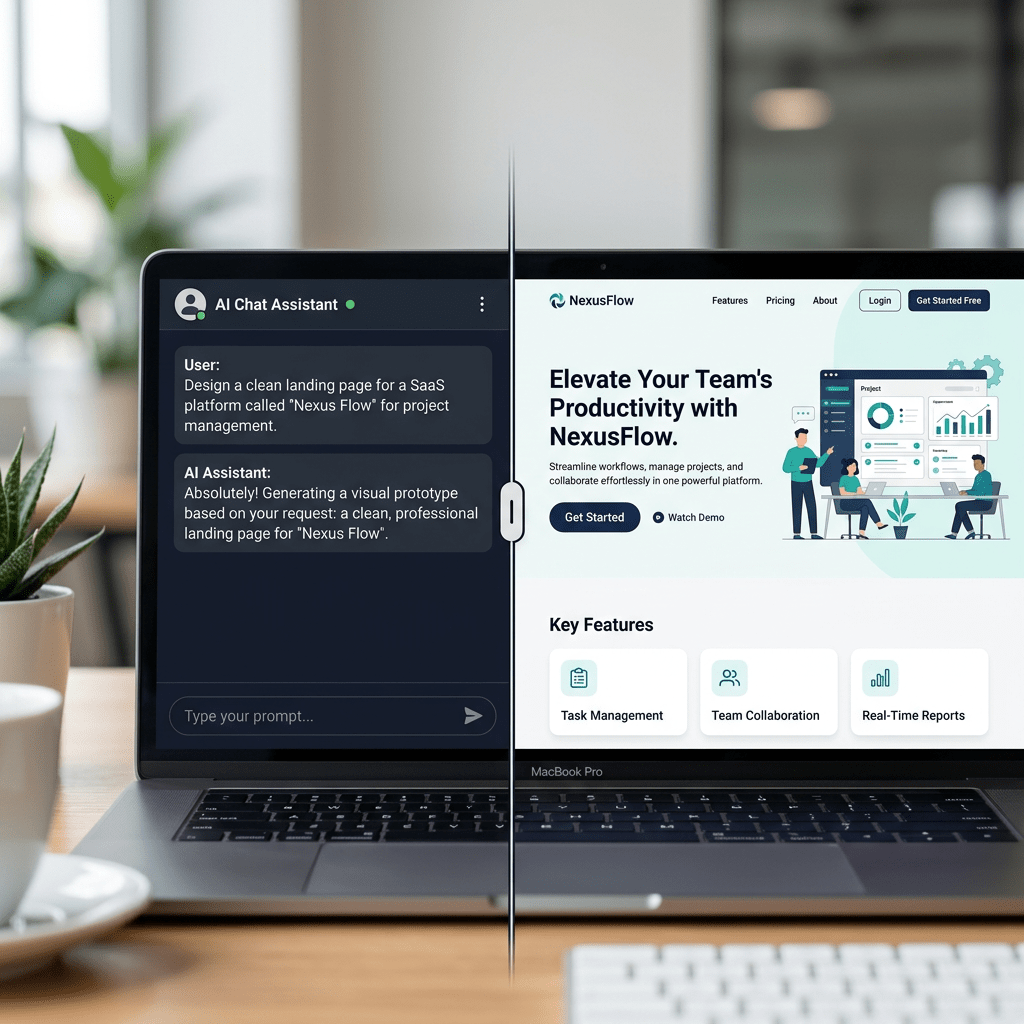
The interface has two sides. On the left, a chat window where you describe what you want. On the right, a live canvas where Claude builds it. You talk, it creates, you refine. That’s the whole loop.
When you first open it, you will see four project types to choose from:
- Prototype for interactive, clickable UI mockups
- Slide Deck for presentations and pitch decks
- From Template if you want a starting structure
- Other for landing pages, one-pagers, and anything else
Pick the one that matches what you are trying to build, and you are off.
Step-by-Step: How to Use Claude Design From Scratch
Step 1: Check Your Access
Before anything else, confirm you are on a paid plan. Head to claude.ai/pricing to check. Pro, Max, Team, and Enterprise all include Claude Design. If you are on the free tier, you will need to upgrade to access it.
One important detail most people miss: Claude Design has its own usage quota. It runs alongside your regular chat limit, not inside it. You are not trading chat messages for design prompts. They are counted separately.
Step 2: Set Up Your Design System First (Do Not Skip This)
This is the step most people skip, and it is the biggest mistake you can make.
Before you build anything, go to the Design Systems section on the right side of the screen. If you are building for a company or brand, connect your codebase or design files here. Claude will read them and extract your colors, typography, and components automatically.
Once that is in place, every project you create will use your brand’s design language by default. You will not spend time trying to describe your color scheme in prompts. Claude already knows it.
A few things to keep in mind:
- If your codebase is very large, link a specific subdirectory rather than the entire repository. Linking a full monorepo can cause lag and may burn through your usage limits faster than expected.
- You can maintain more than one design system. Useful if you manage multiple brands or product lines.
- If you are a solo user or just experimenting, you can skip this and Claude will still generate visuals. They just will not be automatically on-brand.
Step 3: Start a New Project
Click your project type. Give Claude enough context to work with. The more specific you are upfront, the better the first version will be.
Here’s what a good prompt includes:
- What you are building
- Who will use it or see it
- The layout or structure you want
- The content or information that needs to appear
- Any tone or visual direction
Compare these two prompts:
Weak: “Make a dashboard for our product.”
Strong: “Create a dashboard showing monthly revenue with filters for region and product line. The audience is our sales ops team. Keep it clean and data-forward. Show a top row of key metrics and a chart below.”
The second one gives Claude actual direction. The first one leaves it guessing.
Step 4: Review the Canvas Output
Claude will generate a first version on the right panel. Do not expect it to be perfect. Treat it as a fast first draft, not a final output.
Scroll through what it built. Look at the structure, the layout, the hierarchy. Ask yourself what is working and what needs to change before you start making requests.
Step 5: Iterate Using Chat for Big Changes
The chat is your tool for anything structural or directional. If you want to change the layout, add a whole section, shift the visual direction, or see alternative approaches, do it through the chat.
Examples that work well:
- “Make the color scheme darker and more minimal.”
- “Rearrange the dashboard so the chart takes up the full width below the metrics row.”
- “Show me two or three alternative layouts for this page.”
- “Add a pricing section below the feature list.”
- “Review this design for accessibility and suggest improvements.”
That last one is underused. Claude can audit your own design for contrast ratios, information hierarchy, and general usability. It is like having a design reviewer built into the tool.
Step 6: Use Inline Comments for Precise Edits
Inline comments are for surgical changes. Click directly on any element on the canvas and leave a comment requesting a specific fix. This is faster than trying to describe the exact location in chat.
Examples:
- “Make this button padding larger.”
- “Change this to a dropdown instead of radio buttons.”
- “Increase the font size here.”
- “Use the primary brand color on this element.”
One known issue to be aware of: inline comments occasionally disappear before Claude reads them. If that happens, just paste the comment text directly into the chat instead. It works the same way.
Step 7: Manage Versions Before You Diverge
If you want to explore a completely different direction without losing what you have, tell Claude: “Save what we have and try a completely different approach.” Claude will save the current version and confirm where it is stored. You can refer back to earlier iterations any time during the conversation.
This is worth doing before any big structural change. It takes two seconds and saves a lot of frustration.
Step 8: Export or Hand Off
When you are done, hit the Export button in the upper right corner. Your options are:
- Download as .zip for the full project folder
- Export as PDF for sharing or printing
- Export as PPTX for presentation use
- Send to Canva for further editing and polishing
- Export as standalone HTML for web use
- Handoff to Claude Code for turning the prototype into real, shippable code
The Claude Code handoff deserves a mention. When you choose this option, Claude packages everything into a bundle that a developer can pass directly to Claude Code with a single instruction. The design becomes the spec. There is no translation layer, no back-and-forth explaining what was meant. What you see on the canvas is what the developer gets to work with. That is a meaningful change in how ideas move from concept to product.
The Prompts That Actually Work
After spending time with Claude Design, certain prompt patterns consistently produce strong first drafts. Here are a few you can use directly:
For a pitch deck:
“Create a 10-slide pitch deck for [product name], a [brief description]. The audience is seed-stage investors. Use a clean, modern aesthetic with [color scheme]. Slides needed: problem, solution, how it works, market size, traction, team, and ask.”
For a landing page:
“Build a landing page for [product or service]. Include a hero section with a headline and CTA, a features section with three to four key benefits, a social proof section with testimonials, and a final CTA at the bottom. Tone should be [professional/conversational/bold].”
For a mobile app prototype:
“Design a mobile app prototype for a [type of app]. Show three screens: a home screen, a [key action] screen, and a [secondary screen]. Use [color scheme]. Keep the layout clean and minimal.”
For an internal dashboard:
“Create a dashboard for our ops team to track [specific metric]. Top row should show four KPI cards. Below that, a chart for [data]. On the right, a table showing [data]. Filters for date range and [category].”
For design exploration:
“I need a homepage for [product]. Show me three different design directions: one minimal and text-forward, one bold and visual, and one data-focused. I want to compare the approaches.”
That last prompt is one of the most powerful things you can do with Claude Design. Getting three fully rendered directions in one conversation, without asking a designer to spend time on each one, is genuinely useful.
What Makes Claude Design Actually Useful
There are a few things Claude Design does that are worth highlighting separately, because they are not obvious from the surface.
It Reads Your Codebase
This is the feature that surprised developers most. Claude Design can connect to your GitHub repository, read your existing code, extract your design system from it, and then apply that system to everything it creates. No uploading brand assets. No describing your color tokens. It infers them from your code.
What this means in practice: a new design from Claude Design will look like it belongs with your existing product, not like something generic that needs to be styled from scratch.
The Output Is Live Code, Not an Image
This is the key difference between Claude Design and tools like Midjourney or DALL-E. When Claude generates a prototype, it is producing HTML and code, not a static image. The result is clickable, testable, and editable at the source level.
If you want to change the color palette, you are changing code values. If you want to add a button behavior, you are adding a real interaction. This closes the gap between mockup and working product significantly.
You Can Input Almost Anything
Claude Design accepts text prompts, images, screenshots, PDFs, DOCX files, PPTX files, and XLSX files as inputs. There is also a web capture tool that lets you grab elements directly from any live website.
So if you show up with a competitor’s landing page, a screenshot of a design you like, and a document with your product copy, Claude can synthesize all three into a first draft. That is a different starting point than a blank canvas.
You Can Build Genuinely Advanced Prototypes
The frontier design capability is less talked about but worth knowing. Claude Design supports voice, video, 3D, shaders, and built-in AI calls inside a prototype. You can demo a product that includes a working chatbot, a 3D element, or a video player at the mockup stage, without those being placeholders. If you are building an AI product and want to show it in action before writing the backend, this is how you do it.
Why This Is a Genuine Shift, Not Just a New Tool
Here’s the thing about Claude Design that most reviews miss: the biggest change is not speed. Speed is obvious. The more important shift is who gets to have a visual.
Until now, if you had an idea and no design background, you had two options. You could attempt Figma and lose two hours to a tool that was not built for you. Or you could try to explain your idea in words to someone else and hope they understood what you meant.
Claude Design removes that constraint. The gap between having an idea and being able to show it to someone else collapses from days to minutes. A founder can walk into a board meeting with a prototype built that morning. A product manager can share a wireframe with engineering before the sprint starts. A marketer can test three landing page directions in one afternoon.
The Brilliant team reported that pages requiring more than 20 prompts in other tools required only 2 prompts in Claude Design. Datadog’s team compressed a week-long cycle of briefs, mockups, and review rounds into a single conversation. These are not edge cases. They are what happens when the friction of idea-to-visual goes away.
The Claude Code handoff makes this more significant. The path from idea to shipped product now runs through one ecosystem. You describe it in Claude Design, you hand it off to Claude Code, you ship. There is no file format conversion, no re-explaining to a developer what the mockup was trying to show, no design-to-dev translation tax. That is the game-changer.
The Real Limitations (Be Honest With Yourself About These)
Claude Design is still a research preview. That matters. Here is what is actually limited right now, beyond the known bugs.
It Is Not a Figma Replacement for Professional Design Teams
If your team runs mature Figma workflows with shared component libraries, design tokens, branching, developer mode, and collaborative review sessions, Claude Design does not replace that. Figma is built for designers working with other designers and engineers inside a shared file. Claude Design is built for the moment before that file exists.
The two tools can complement each other. Claude Design handles the early exploration. Figma handles the production-ready work. But if you come in expecting to retire your Figma subscription, you will be disappointed.
Export as Video Is Not Available Yet
If you build an animated prototype or a video-style design, you cannot export it as a video file directly. The workaround right now is screen recording. It works, but it is not a clean professional output path.
Slide Decks Can Feel Static
The slide deck output is functional but can feel flat compared to custom-designed presentations. The first draft is a solid starting point, but you will likely need to push it through a few revision cycles or send it to Canva for polish before it is presentation-ready for external audiences.
Large Codebases Cause Performance Issues
Connecting a very large repository to your design system setup can cause lag, browser slowdowns, and higher usage consumption. Link specific subdirectories instead of the full repo.
Known Bugs Still Present
A few issues Anthropic has documented but not yet resolved:
- Inline comments occasionally disappear before Claude processes them (workaround: paste them in chat)
- Compact view mode can trigger save errors (workaround: switch to full view)
- Chat upstream errors can occur mid-session (workaround: start a new chat tab in the same project)
None of these are blockers, but they are worth knowing in advance so you are not confused when they happen.
It Is Not Free, and Usage Is Capped
Claude Design requires a paid subscription. And while it has its own separate usage quota from your chat limits, that quota is finite. Complex prototypes with large codebases attached can consume it quickly. If you are planning a heavy session, it is worth being intentional about what you are building and how many revision cycles you run.
Where Claude Design Fits in Your Workflow
The clearest mental model for where Claude Design belongs:
- Claude Design handles the first draft. Idea to visual, fast.
- Canva handles the polish. Take the Claude Design output and refine, brand, publish.
- Figma handles the production-grade design. For professional design teams doing pixel-precise component work.
- Claude Code handles the build. Take the prototype and turn it into real, shipped product.
You do not need to replace any tool you already use. Claude Design fills the gap at the start of the chain, the part where most ideas currently die because turning them into something visual requires too much friction.
Start Here if You Have Not Tried It Yet
Go to claude.ai/design. Set up your design system if you have a codebase to connect. Pick a project type. Write a specific prompt with goal, layout, content, and audience. Review the first draft. Iterate through chat for structure, through inline comments for details.
The whole loop, from blank page to something shareable, takes minutes.
That is the point.
If you found this useful, share it with someone who keeps saying they wish they could show their ideas visually without needing a designer. This is the tool for that.


Leave a Reply