
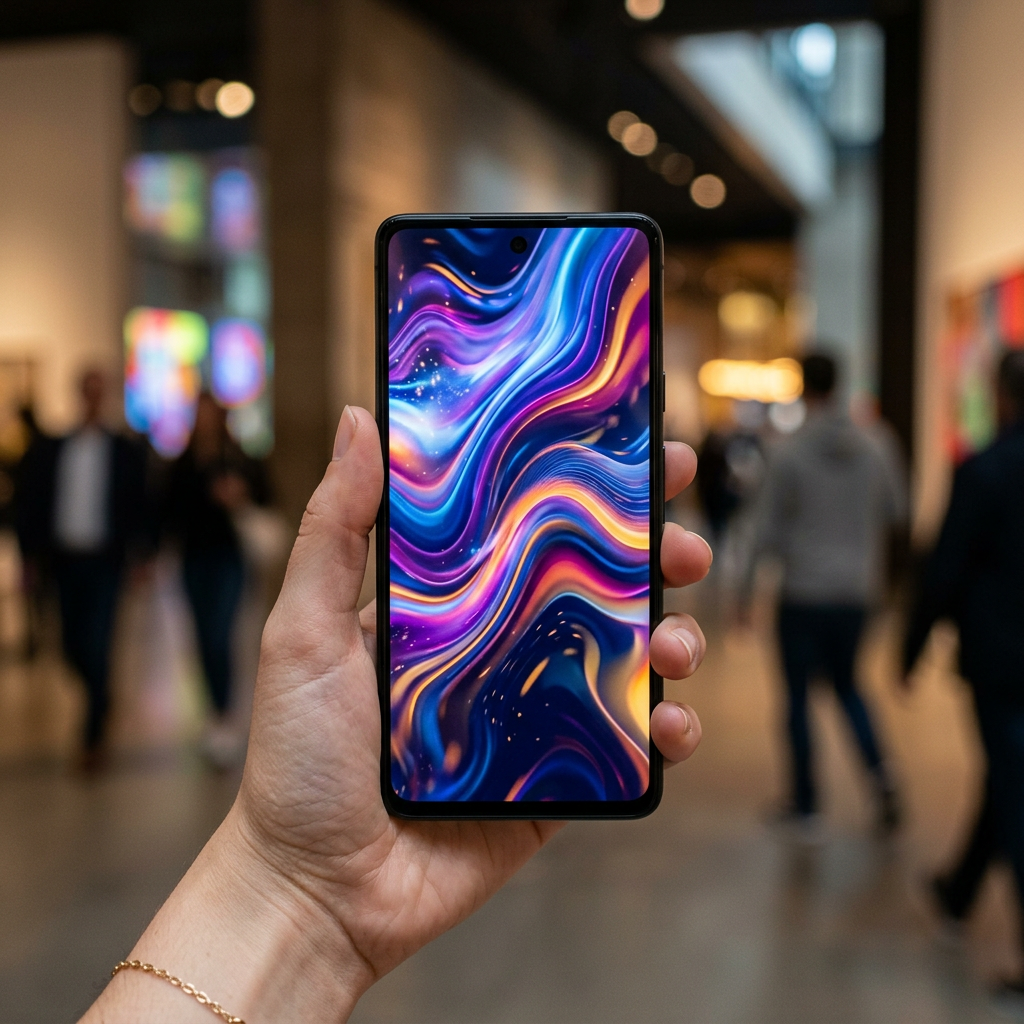
NotebookLM just shrunk its entire video feature down to the size of a phone screen. Instead of ten minute explainer videos, you can now generate a 60 second vertical clip that breaks down a single concept from your own documents, and it looks and moves like something you would find on Instagram Reels or TikTok.
Google announced the feature, called Short Video Overviews, on June 30, 2026. It is the third video format inside NotebookLM’s Studio panel, and it is built specifically for scrolling, not sitting through a full presentation.
Here is everything it does, who can use it right now, and how to generate your first one.
What Short Video Overviews Actually Do
You upload a source, a PDF, a research paper, a set of lecture notes, a long article, and NotebookLM picks out one concept from it and turns that concept into a 60 second, vertical, narrated video with animations built to explain it.
That is the whole idea. Not a summary of everything in your document. One idea, explained fast, in a format built for a phone held upright.
Google’s own framing for this is blunt: take the mechanism that keeps people glued to short form video apps and point it at studying instead. The official announcement leaned into that with the line “doom scrolling but make it educational.”
How It’s Different From NotebookLM’s Other Two Video Formats
NotebookLM now has three video output types, and mixing them up wastes your generations. Here is how they actually differ.
| Format | Length & Orientation | Best For | Built On |
|---|---|---|---|
| Explainer | Several minutes, horizontal, narrated slides | Comprehensive walkthroughs that connect multiple sources | Gemini Omni |
| Cinematic | Longer, horizontal, fully animated scenes | Immersive, story driven explanations of complex topics | Gemini 3, Nano Banana Pro, Veo 3 |
| Short | 60 seconds, vertical | One concept, quick review, mobile sharing | Nano Banana 2 Lite (Gemini 3.1 Flash-Lite Image) |
If you want the full picture of a topic, Explainer is still your format. If you want something that feels closer to a documentary segment, that is Cinematic. Short is for the moment you just need to nail down one idea before a test, a meeting, or a scroll break.
The Model Behind It: Why Short Videos Generate So Fast
Short Video Overviews run on Nano Banana 2 Lite, officially named Gemini 3.1 Flash-Lite Image. Google built it as its fastest and cheapest image generation model, with roughly four second render times per image, which is what makes rapid, disposable, one minute videos practical in the first place.
Speed is the entire point here. A format like this only works if you can generate a lot of them without waiting around, so Google traded some of the polish you would get from Cinematic’s Veo 3 pipeline for volume and speed.
Who Can Use It Right Now
A few restrictions are worth knowing before you go looking for the button in your own account.
- Subscription: Short Video Overviews are rolling out to Google AI Pro ($19.99/month) and Google AI Ultra (from $99.99/month) subscribers first. Free plan access is confirmed as coming, but no date has been announced.
- Age: This one catches people off guard. Per Google’s own support documentation, Short and Cinematic Video Overviews are restricted to users 18 and older, even on paid plans.
- Platform: Available on both web and mobile, though NotebookLM’s mobile app can lag behind the web version on newer features.
- Language: English only at launch. Google has not committed to a date for additional languages, though its other Video Overview formats eventually expanded to 80 languages, so more are likely on the way.
How to Generate a Short Video Overview: Step by Step
- Open or create a notebook in NotebookLM and upload your source material. PDFs, Google Docs, slides, web links, and pasted text all work.
- Open the Studio panel on the right side of your notebook.
- Select the Video Overview tile to start a new generation.
- Choose the Short format from the format options, alongside Explainer and Cinematic.
- Add a steering prompt (optional but worth doing). This is where you actually control the video. Instead of letting NotebookLM guess which concept matters most, type something specific: “focus only on the compounding interest section” or “explain the mitosis stages, skip the history.”
- Hit generate and let it run. Short-form videos are built for speed, so expect a noticeably faster turnaround than the longer Cinematic format.
- Review, then download or share. Once it is ready, you can play it in full screen, download the file, or generate a share link if the notebook is set to public.
One tip that actually matters: the steering prompt is doing most of the work here. A vague prompt gets you a generic overview of whatever NotebookLM decides is important. A specific one gets you a video built around exactly the thing you are trying to understand.
Who Should Actually Use This
This is not a feature for everyone, and that is fine. A few groups will get real use out of it immediately.
- Students revising for exams. Upload your lecture notes, generate a short clip per key concept, and review them the same way you would scroll a feed, just between classes or before bed. If you do not already have Google AI Pro, check whether your school still qualifies for free access before paying for it.
- Anyone with dense reading they keep putting off. A 40 page report becomes something you can actually get through on a commute.
- Educational content creators. If you already turn research into short videos for social platforms, this hands you a rough first draft in a minute instead of an afternoon of editing.
- Teams onboarding new hires. Turn a dense internal doc into a handful of 60 second explainers instead of expecting someone to read the whole thing.
Honest Limitations
A few things worth knowing before you build a workflow around this.
- It only handles one concept per video. If your source covers ten ideas, you are generating ten separate videos, not one comprehensive summary.
- English only, for now. If your source material or target audience is not English speaking, this feature is not usable yet.
- Locked behind a paid plan. Free NotebookLM users cannot try this yet, and there is no confirmed date for when that changes.
- Age gated at 18. Students under 18 cannot generate these, even through a school Workspace account, which is a real limitation for the exam revision use case Google itself is marketing this toward.
- It is still AI generated. Treat every Short Video Overview as a study aid, not a verified source. Cross check anything you are relying on for a grade or a decision against your original material.
Should You Try It?
If you already pay for Google AI Pro or Ultra, there is no real downside to testing this the next time you have a dense document to get through. It costs you nothing extra since it is bundled into the subscription you are already paying for, and worst case, you generate a mediocre 60 second video and go back to reading.
If you are on the free plan, there is nothing to do yet except wait. Google has confirmed free access is coming, just not when.
Turning a 40 page PDF into something you can actually finish watching before your coffee gets cold. That is either the future of studying or the most honest thing tech has said about our attention spans in years. Share this if you know someone who needs to see it.


Leave a Reply