
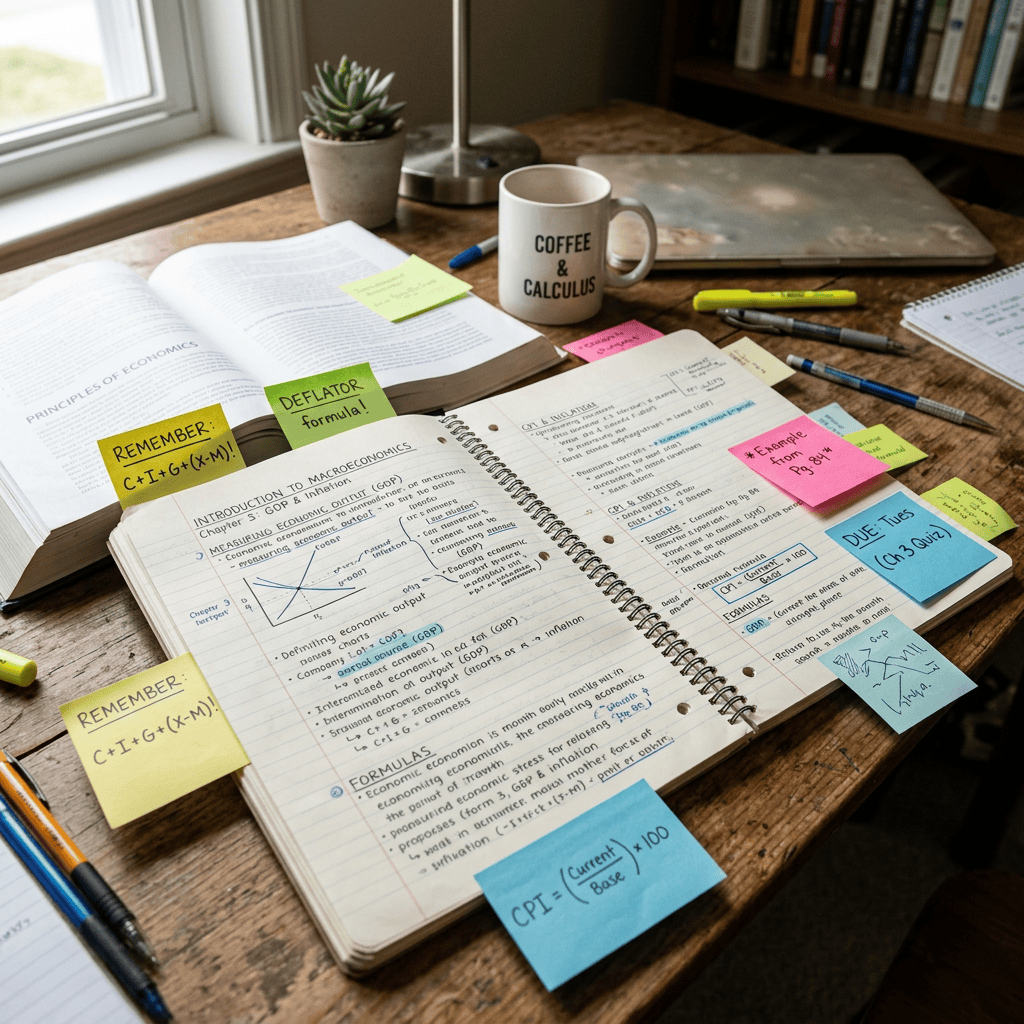
A creator on Instagram found a genuinely useful way to make ChatGPT generate study notes that people actually want to revise from, using plain language prompts instead of any hidden feature. Credit for the original idea goes to him. Below is the full walkthrough, why it works better today than it did a year ago, and several other ways to use ChatGPT for studying that his reel did not get into.
The Reel That Started This
A viral educational reel from creator @precisely.parth showed a simple trick: describe the note style you want to ChatGPT, in plain words, and it hands back a finished visual you can revise from instead of a wall of text. In the video, he uses prompt styles built around words like “handwritten” and “sticky notes,” applying them to topics like photosynthesis and how ethanol gets blended into petrol, and turns each one into a neatly organized page or a set of colorful digital sticky notes.
The reaction says a lot about where student habits are heading. People liked that revision material could look less like a textbook scan and more like something a friend with excellent handwriting made for them. A few commenters pointed out something worth repeating here too: prompt styles and outputs shift depending on the AI model you are using and when you are using it. What works today might need a small tweak in three months.
Why This Actually Works Now
Here is the part the reel does not explain, and it matters. A year ago, asking any AI image tool to put readable text inside an image was a coin flip. Words came out warped, letters swapped places, whole sentences turned into gibberish. That is why “AI generated notes” used to mean a nice looking mess you could not actually study from.
That changed in April 2026, when OpenAI rolled out ChatGPT Images 2.0, its image generation model built to plan a composition before drawing it and to render text accurately, including in non-Latin scripts. That planning step is exactly why a “handwritten notes” prompt can now produce a page where the headings, labels, and diagram callouts are all legible, not just decorative squiggles that look like writing from a distance.
One clarification worth making since it trips people up: “/handwritten” and “/sticky-notes” are not official ChatGPT commands or slash shortcuts. They are just descriptive words creators started typing into normal prompts, and ChatGPT interprets them as style instructions. You do not need to memorize any syntax. You need to describe what you want clearly, the same way you would brief a designer.
Step by Step: Handwritten Style Notes on Any Topic
- Open ChatGPT and pick your topic. This works on the free plan too, since image generation is available across all ChatGPT tiers, not just paid ones.
- Ask for a plain text summary first. Type something like: “Explain [topic] in 4 to 5 key points a student needs to remember for an exam, plain text, no fluff.” This gives you a fact checked outline before any image gets involved, and it is the single most skipped step that separates a useful note from a pretty one.
- Turn that outline into an image with a specific style prompt. Something like: “Turn this into a single handwritten style study note page. Use neat, legible handwriting on a cream or lightly ruled background, organize it under clear headers, add one simple labeled diagram if relevant, and highlight 3 to 4 key terms in a different color. Keep it clean, not decorative.”
- Check the output against your outline. Read every word in the image. If a label is wrong or a diagram is misleading, regenerate or ask ChatGPT to fix that specific part rather than starting over.
- Download it and file it where you will actually see it again. A notes folder, a revision board, wherever you already look before a test.
Step by Step: Sticky Note Style Visual Summaries
- Ask ChatGPT to break the topic into 5 or 6 bite sized ideas. Example: “Break down [topic] into 6 short, standalone ideas, one sentence each, suitable for individual sticky notes.”
- Prompt for the visual. Something like: “Turn these into a set of colorful sticky notes on a plain background, one idea per note, using a different color for each subtopic, clear print style handwriting, minimal clutter.”
- Iterate on the layout. Ask to reorder the notes by importance, swap colors so related ideas match, or shrink the text so more fits per note.
- Export and use it as a visual index. This format works well as a quick pre-exam refresher rather than your primary study material, since each note only holds a sentence of context.
Which Style to Use When
| Prompt style | Best for | Example |
|---|---|---|
| Handwritten notes | One dense topic you need to actually study, not just skim | Photosynthesis stages, a historical timeline |
| Sticky notes | Chopping a chapter into digestible pieces before a quick review | 5 causes of a war, parts of a cell |
| Mind map | Seeing how separate ideas connect to each other | Essay planning, linking themes across chapters |
| Flowchart | Processes with steps or decision points | The scientific method, a math proof sequence |
Beyond Pretty Notes: Actually Retaining What You Study
A good looking note page solves organization, not memory. Reading a beautiful summary once and assuming it stuck is how most revision time gets wasted. A few ways to close that gap with the same tool.
- Use Study Mode for active recall. OpenAI’s Study Mode is a dedicated setting, available since July 2025 on Free, Plus, Pro, and Team plans, that deliberately withholds direct answers and instead asks you guiding questions until you work through the problem yourself. Turn it on from the tools menu after you have made your notes, and use it to test whether you actually understood what you just generated.
- Ask ChatGPT to quiz you. Paste your notes back in and type: “Ask me 8 questions based on these notes, one at a time, and tell me if I am right after each answer.” This forces retrieval instead of recognition, which is what actually builds memory.
- Request a spaced repetition schedule. Something like: “Give me a 5 day review schedule for these notes using spaced repetition, telling me exactly which day to revisit which section.”
The Honest Limitations
- A convincing looking note is not automatically a correct one. Text rendering has improved dramatically, but that only means the words are legible. It says nothing about whether the content is accurate. Always generate your plain text outline first and check the image against it, not the other way around.
- Fine detail still struggles. Dense chemical structures, exact mathematical notation, and small multi part diagrams are where these tools are most likely to introduce a subtle error that looks fine at a glance.
- Results vary by app, device, and update. The same prompt can render differently between the ChatGPT app, the web version, and after a model update. Do not assume one perfect prompt will always behave identically.
- Mind your privacy if you are uploading coursework. If you are pasting in original assignments or class material you would rather not have floating around, it is worth knowing how to keep your AI chats from becoming public before you make a habit of this.
The Bottom Line
The trick behind this trend is not a secret command. It is a reminder that ChatGPT will follow a well written style brief just as well as it follows a factual one, and now that it can actually render text properly, that brief can produce something you would want to pin above your desk. Use it to make studying less miserable to look at. Just do not skip the part where you check what it actually says.
If your notes have always looked like they were written during an earthquake, this fixes that in under two minutes. Share it with whoever in your group chat is still highlighting a textbook in four colors by hand.
Sources and further reading
- Instagram, @precisely.parth, original reel and credit for the prompt trend.
- OpenAI, Introducing ChatGPT Images 2.0.
- OpenAI, Introducing Study Mode.


Leave a Reply