
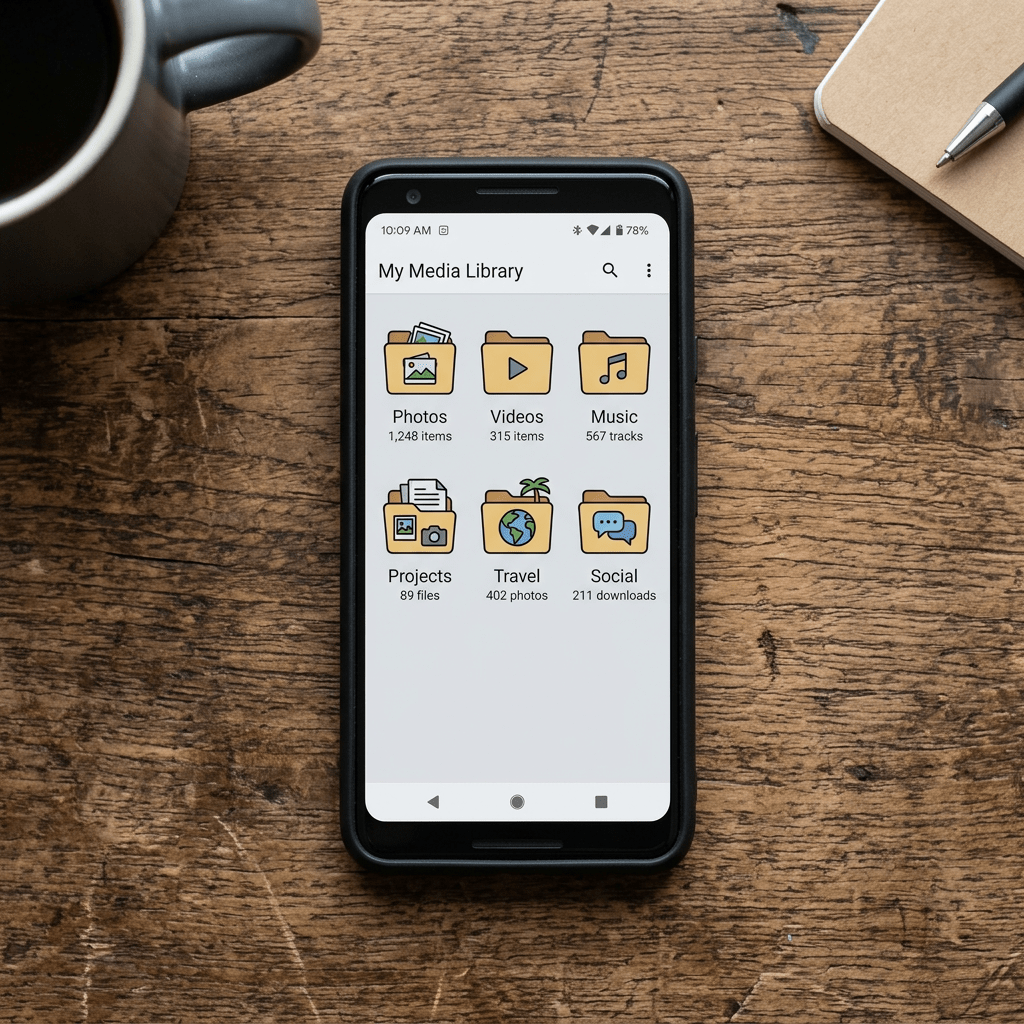
WhatsApp is quietly one of the biggest storage hogs on your phone, and most people never figure out why until the “storage almost full” warning shows up mid conversation. The good news is you almost never have to delete real chats or memories to fix it. Nearly all of that bloat comes from things you never asked for: auto downloaded memes, duplicate photos sitting in two places at once, and cloud backups quietly ballooning in the background.
This guide walks through the exact settings and habits that reclaim gigabytes of space, in the order that actually matters. Some of these have been part of WhatsApp for years. A few are brand new, rolled out in WhatsApp’s March 2026 update, and most people still have no idea they exist.
Why WhatsApp Storage Fills Up So Fast
Three things are usually to blame, and none of them involve messages you actually care about.
Auto-download is on by default. Every photo, video, voice note, and document sent to you in an active group gets pulled onto your phone automatically, whether you open the chat or not. A single busy family or work group can add hundreds of megabytes a week without you lifting a finger.
Your phone keeps two copies of everything. WhatsApp saves media inside its own app storage, and on many phones it also copies that same file into your regular photo gallery. Delete it from WhatsApp and the gallery copy is still sitting there, untouched.
Backups grow forever unless you tell them not to. Every photo and video you have ever sent or received gets bundled into your Google Drive or iCloud backup by default, videos included, and videos are almost always the biggest files in your entire chat history.
Fix those three, and you have solved most of the problem before you delete a single file.
Step 1: See Exactly What’s Eating Your Space
Before deleting anything, look at where the space is actually going. Guessing wastes time and risks removing something you wanted to keep.
- Open WhatsApp and tap the three dot menu (Android) or Settings (iPhone).
- Tap Settings > Storage and data > Manage storage.
- At the top, you will see the total space WhatsApp is using on your device.
- Below that, chats are sorted from largest to smallest, so the biggest offenders show up first.
Two filters are worth checking before you touch individual chats. Larger than 5 MB shows every file above that size across all chats, which is usually where the bulk of the waste hides. Forwarded many times catches the memes and viral videos that got passed around a dozen group chats before landing in yours, files you almost certainly do not need a personal copy of.
Step 2: Turn Off Auto-Download (This Is the Fix That Actually Sticks)
Clearing storage once and stopping there is like mopping the floor while the tap is still running. Auto-download is the tap. Turn it off and the problem stops refilling on its own.
- Go to Settings > Storage and data.
- Under Media auto-download, tap each option: When using mobile data, When connected on Wi-Fi, and When roaming.
- Uncheck Photos, Audio, Video, and Documents for each one, or set them all to Never.
You can still open any photo or video manually by tapping it in the chat. It just will not land on your phone uninvited. If you are part of a handful of high traffic groups but still want media from your closest chats to download normally, you can set this per chat instead: open the chat, tap the contact or group name, and adjust Media auto-download there rather than changing the global setting.
Step 3: Stop WhatsApp From Saving a Second Copy to Your Gallery
This is the setting most people never find, and it is often responsible for more wasted space than anything inside WhatsApp itself.
On iPhone:
- Open WhatsApp and tap Settings.
- Tap Chats.
- Turn off Save to Camera Roll.
On Android:
- Open WhatsApp and tap Settings.
- Tap Chats.
- Turn off Media visibility.
Media stays fully viewable inside your WhatsApp chats. It just stops cluttering your main photo gallery with a duplicate copy of every meme your cousin’s group chat has ever produced.
Step 4: Use the New Per-Chat Storage Manager
WhatsApp rolled out a genuinely useful upgrade to storage management in its March 2026 update, and it solves a real annoyance: the old global Manage Storage screen made it slow to clean up one specific chat without scrolling past everything else.
- Open the chat or group you want to clean up.
- Tap the contact or group name at the top.
- Tap Manage storage.
- Review the files sorted by size and select the ones you do not need.
- Tap Delete.
This is the fastest route if one or two chats, usually a family group or a work channel that shares a lot of PDFs, are responsible for most of your storage problem. No need to touch anything else.
Step 5: Clear Media Only, Keep the Conversation
If a chat has grown enormous mostly because of accumulated photos and videos rather than important text, you no longer have to wipe the whole thing to reclaim space. WhatsApp now lets you clear just the media from a chat while keeping every message intact.
- Open the chat and tap the contact or group name.
- Tap Clear chat.
- Choose the option to clear media only, keeping your message history.
Reach for this on group chats where the conversation itself has value, a planning thread, an ongoing project, family history, but the media has mostly been jokes, screenshots, and forwards you have no reason to keep.
Step 6: Shrink Your Cloud Backup Too
Freeing space on your phone does not automatically shrink your Google Drive or iCloud backup. If that backup keeps growing, you will eventually get hit with a separate storage warning from Google or Apple instead of WhatsApp. Videos are almost always the biggest single contributor.
On Android:
- Open WhatsApp Settings, then tap Chats > Chat backup.
- Turn off Include videos.
On iPhone:
- Open WhatsApp Settings, then tap Chats > Chat backup.
- Turn off Include videos under your iCloud backup settings.
This will not shrink backups you have already made, but every backup from that point forward will be noticeably smaller. If a specific video genuinely matters, save it manually to your camera roll or Google Photos first, then let it drop out of the WhatsApp backup.
Step 7: Let Noisy Groups Clean Themselves Up Automatically
For groups that generate constant, low value media, sports commentary threads, meme channels, daily good morning forwards, the easiest long term fix is to stop the clutter from accumulating in the first place.
- Open the group chat and tap its name.
- Tap Disappearing messages.
- Choose 24 hours, 7 days, or 90 days.
New messages and media delete themselves automatically once the timer runs out. Nothing you have already saved elsewhere is affected, and you never have to remember to go back and manually clean that group again.
The Save-Then-Delete Move for Anything You Actually Want to Keep
Before you delete anything you are even slightly unsure about, this two second habit prevents regret. Open the photo or video in the chat, tap the share icon, and save it to your camera roll or Google Photos. Then go back and delete it from WhatsApp. You keep the memory in a dedicated photo app built for browsing and backing up images properly, and WhatsApp stops carrying the weight of a file it was never meant to be a permanent home for.
Which Method Actually Saves the Most Space?
| Method | Typical space recovered | Effort | Risk to what you want to keep |
|---|---|---|---|
| Turning off auto-download | Prevents future bloat, not a one-time fix | Low, one-time setup | None |
| Deleting “Larger than 5MB” and “Forwarded many times” files | High, often several GB immediately | Low | Low, mostly forwards and junk |
| Per-chat Manage Storage | High for specific bloated chats | Low | Low if you review before deleting |
| Clear media, keep chat | Medium to high | Very low | None to your messages |
| Excluding videos from backup | High for your cloud storage, not your phone | Low, one-time setup | None if you save important videos first |
| Disappearing messages on noisy groups | Ongoing, prevents future clutter | Low, one-time setup | None for groups you would not miss |
The Honest Limitations
- Turning off auto-download will not shrink what is already on your phone. It only stops new bloat from arriving. You still need to clear existing files once.
- Deleting media inside WhatsApp does not touch copies already saved to your gallery. If Save to Camera Roll or Media visibility was on before you disabled it, those old duplicates are still sitting in your photo app and need to be cleared separately.
- Excluding videos from your backup does not shrink backups you already made. The change only applies going forward.
- The per-chat storage manager and clear-media-only option are still rolling out. Meta describes the March 2026 features as becoming available to everyone gradually, so if you do not see them yet on your version of WhatsApp, an app update should bring them soon.
The Bottom Line
Most WhatsApp storage problems are not a “you have too many memories” problem. They are a “your phone has been quietly downloading and duplicating other people’s forwards for two years” problem. Fix auto-download and gallery duplication once, use the per-chat tools when a specific group gets out of hand, and you will likely free up gigabytes without deleting a single conversation you actually care about.
If someone in your life keeps complaining their phone is full of WhatsApp junk, send them this. It will take them ten minutes and save them from ever buying a bigger phone just for storage.
Sources and further reading
- Meta Newsroom, WhatsApp Adds New Features to Simplify Storage, Switch Accounts, and More
- WhatsApp Help Center, How to free up storage on WhatsApp
- GroovyPost, How to Stop WhatsApp Saving Photos to Your Camera Roll
- Make Tech Easier, How to Decrease WhatsApp Backup File Size on Android
- IONOS Digital Guide, WhatsApp Storage Full? How to Clear WhatsApp Storage on Android and iPhone
- TechPP, WhatsApp Backup Too Large? 5 Tips to Trim Down the File Size


Leave a Reply