
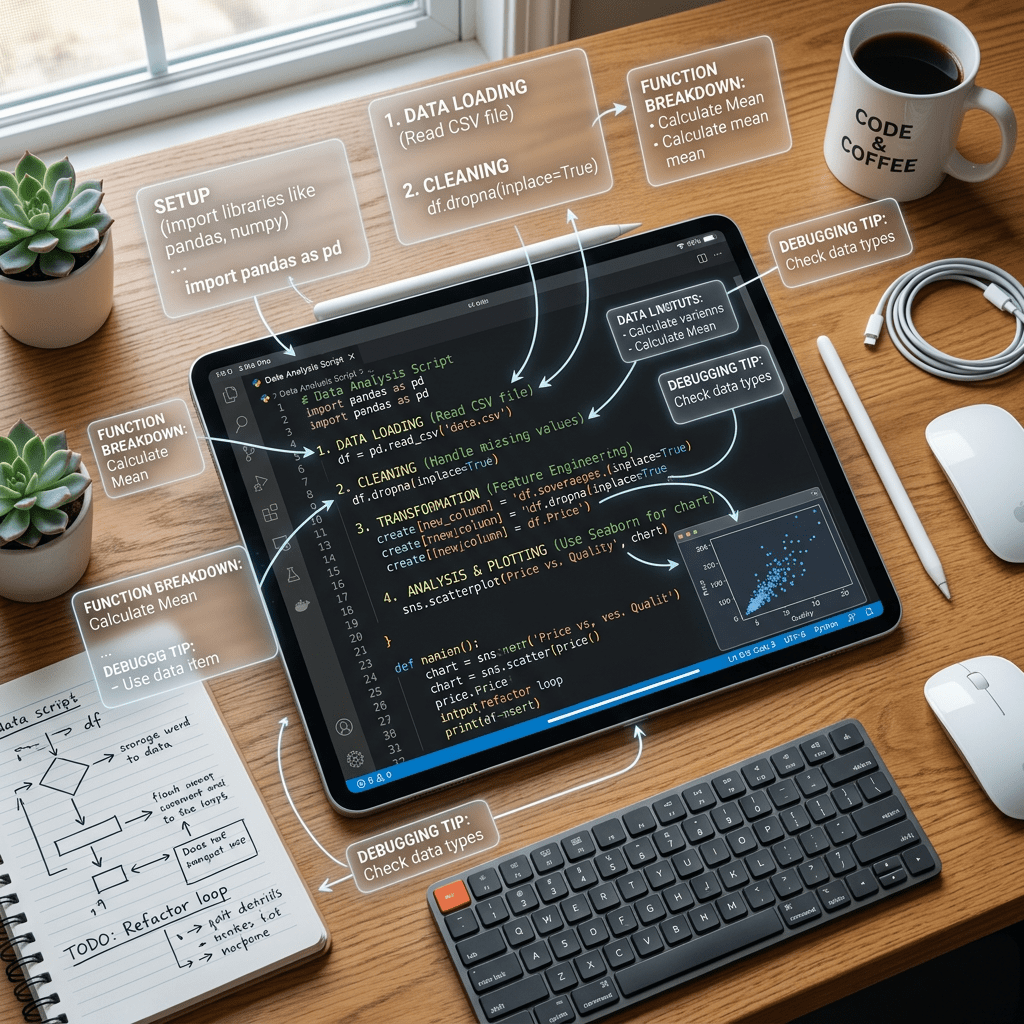
Most YouTube summarizers only listen. TubeTutor also watches. Paste in a tutorial link and it reads the spoken narration the way every other tool does, then separately scans the screen for code, menus, error messages, and on screen steps that a transcript alone would miss. TubeTutor packages the result into a workspace with timestamped steps, a summary, a full transcript, a mind map, and notes, all tied back to the original video.
Quick heads up before you go searching. There is a separate, unrelated open source project also called TubeTutor, built as a weekend project and hosted on a free Vercel domain. It does something similar in spirit, transcript based summaries and quizzes, but it is not the same product covered here. This post is about the commercial tool at tubetutor.ai, the one built specifically for tutorial heavy content where what is happening on screen matters as much as what is being said.
What TubeTutor Actually Does
Here’s the thing about most YouTube summarizers. They run on the transcript and nothing else, which works fine for a podcast style interview and falls apart the moment a video shows a terminal command, a settings toggle, or a piece of code that the narrator never actually says out loud. Software tutorials, coding walkthroughs, AI workflow demos, and design lessons live and die by what is on screen, not just what is spoken.
TubeTutor’s pitch is that it analyzes both tracks separately. The spoken narration gets summarized the normal way. The visual layer gets scanned for interface text, code snippets, menu paths, and demonstrated actions, and each finding comes with an approximate timestamp and a note on where it came from, whether that’s visible text, an object on screen, an interface element, or an action the presenter performed. That evidence trail is the part most competitors skip entirely.
Everything lands in one connected workspace: visual steps, a written summary, the full transcript, an auto generated mind map, and a notes panel, all cross referenced to the source video. Output supports several languages including English, Spanish, French, German, Portuguese, Japanese, Korean, and both simplified and traditional Chinese, and notes can be exported in a format ready to drop into Notion.
How to Use TubeTutor: Step by Step
- Find a tutorial worth breaking down. This tool earns its keep on dense, visual content: a coding walkthrough, a software demo, a Figma tutorial, an AI tool explainer. Skip it for talking head videos where a normal transcript summary already does the job.
- Copy the YouTube URL and paste it into TubeTutor. Head to tubetutor.ai and drop the link into the input field. No account is required to try this the first couple of times.
- Pick your output language. Choose the language you want the summary and notes generated in. The original video’s spoken language can stay as is even if your output language is different.
- Click Analyze and let it process. TubeTutor works through both the audio and video tracks. Longer, denser tutorials take more time than a quick five minute clip.
- Work the results, not just the summary. Open the visual steps tab first for anything code or interface heavy, since that’s where the timestamped, evidence backed findings live. Use the mind map to see the shape of the whole tutorial at a glance, then drop your own notes in as you go.
- Export before you lose the tab. Save your notes in the Notion ready format if you want this to become part of a permanent knowledge base instead of a one time lookup.
The Upside
- It catches what transcripts physically cannot. Code on screen that the narrator glosses over, a settings menu that gets clicked without comment, an error message flashed for two seconds. A word for word transcript misses all of it.
- Every finding comes with receipts. Approximate timestamps plus a note on whether something was spotted as text, an object, or an action, which means you can verify a claim instead of taking the summary on faith.
- One workspace instead of five open tabs. Summary, transcript, mind map, notes, and visual steps live together and stay linked to the source video, so you are not juggling a separate note taking app.
- It is genuinely built for a specific job. Rather than trying to summarize every kind of video ever uploaded, it is tuned for coding lessons, software walkthroughs, and design tutorials where the screen carries half the information.
Where It Falls Short
- Visual analysis quality tracks video quality. A cramped interface, a low resolution recording, or a presenter who moves fast between windows will produce shakier results than a clean, well paced tutorial.
- Timestamps are approximate, not frame accurate. Fine for jumping to the right general moment, not something to cite in place of watching the actual clip.
- The free tier is genuinely limited. Two distinct videos per local day covers casual use, not a full afternoon of research.
- Full visual analysis needs an account. The guest preview lets you kick the tires, but saving projects and getting the deeper visual breakdown both require signing in.
- Published pricing is thin. TubeTutor’s own site does not lay out a clear pricing page the way most SaaS tools do. Third party trackers list a rough monthly figure, but you will want to confirm the current number on site before you commit a card.
Who This Is Actually Built For
- Developers learning from coding tutorials who need terminal commands and code changes captured accurately instead of paraphrased from memory.
- Students in software or design heavy courses who want structured notes and a mind map out of a long lecture recording without manually pausing every thirty seconds.
- Self taught builders following AI workflow demos where the exact prompt structure and tool configuration shown on screen actually matters.
- Non native English speakers who want tutorials translated into a first language without losing the visual detail that a plain transcript strips out.
- Not a fit for casual viewers who just want a quick one paragraph gist of a talking head video. A simpler, faster transcript tool will serve you better for that.
Pricing
The part that is confirmed: TubeTutor offers a free guest preview, no credit card required, capped at two distinct videos per local day. Saving projects long term and getting full visual analysis both require creating an account.
The part that is not fully confirmed: paid tier pricing is not clearly published on TubeTutor’s own marketing site as of this writing. A third party AI tool directory lists an approximate $9.90 per month figure, but treat that as a starting estimate rather than a locked in number. Check the live pricing page before you subscribe.
Alternative Tools
If TubeTutor’s visual analysis is more depth than you need, or you just want to compare before committing, these cover similar ground from different angles.
- Eightify is a Chrome extension that drops a summary panel straight onto the YouTube page. It extracts key points with timestamps, supports over 40 languages, and needs no separate tab, though the free tier is limited to a handful of summaries before it asks for payment.
- Glasp leans into research and knowledge building rather than quick summaries. You get full transcripts, transcript highlighting, a choice of AI models including ChatGPT, Claude, and Gemini, and export to Notion, Obsidian, or Roam. It also handles PDFs and web articles, not just YouTube.
- NoteGPT is the closer match to TubeTutor’s study focused angle, with mind maps, flashcards, slide export, and batch processing of multiple videos, aimed squarely at students building study materials.
None of these read the screen the way TubeTutor does. If code, menus, and on screen steps are the whole point of the video you are watching, that gap is exactly what TubeTutor is built to close.
The Bottom Line
TubeTutor solves a real, specific problem: most tutorial content lives half in what is said and half in what is shown, and a transcript only ever gives you the first half. If you spend real time inside coding tutorials, software walkthroughs, or AI workflow demos, the visual analysis layer alone justifies trying the free preview. If you mostly watch talking head videos and podcasts, save yourself the account creation and reach for a simpler transcript tool instead.
Try the free preview on your next dense tutorial before you commit to sitting through the whole thing twice.
Sources and further reading
- AIToolsSpace, TubeTutor Visual AI for YouTube Tutorials.
- TubeTutor, official site.
- Glasp, Glasp vs Eightify comparison.
- WildandFree Tools, NoteGPT and Eightify alternatives, pricing breakdown.


Leave a Reply