
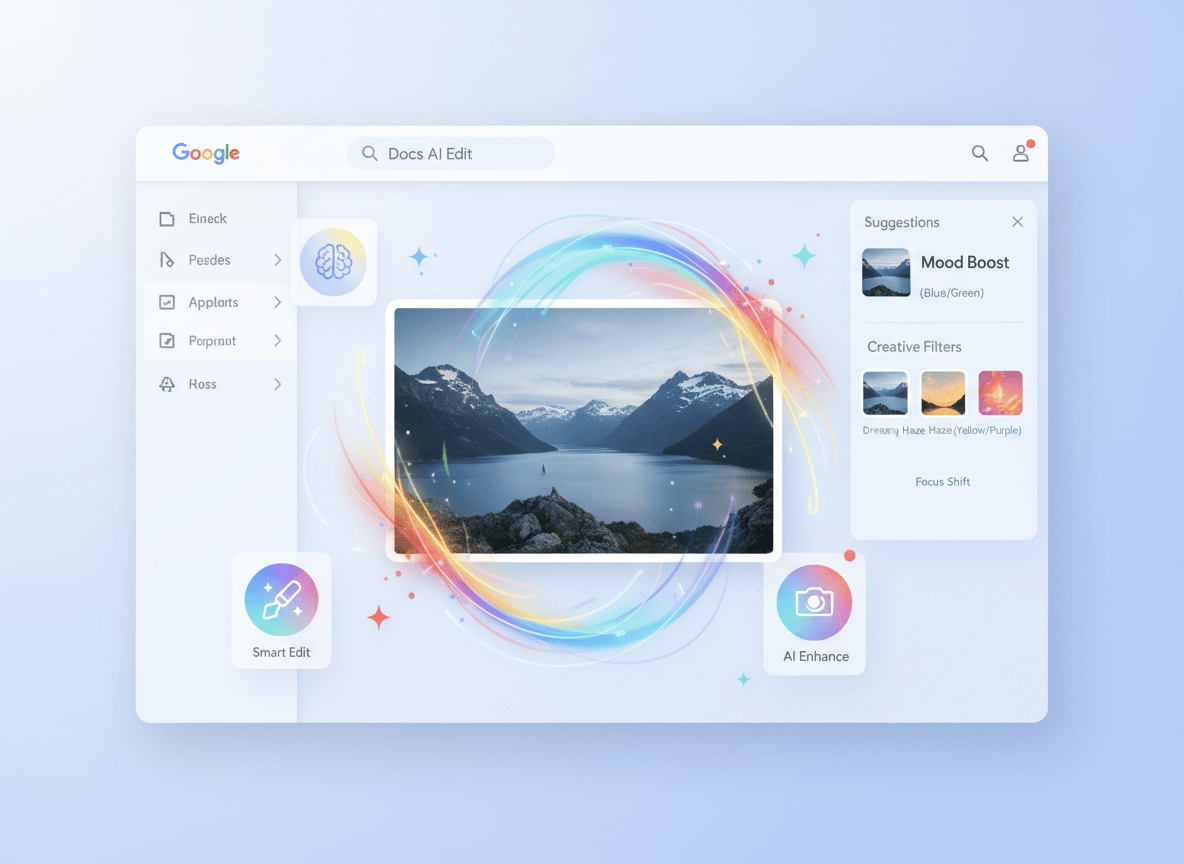
You’ve been there: a good AI-generated image, one object slightly wrong, and no clean way to fix just that one thing without regenerating the whole thing from scratch. Google Pics, which hit general availability on September 1, 2026, is Google’s direct answer to that problem. It is built right into Docs and Slides, it runs on the same Nano Banana model behind Gemini’s viral image edits, and it lets you click on an individual object and change only that. Here’s what it actually does and how to start using it today.
What Is Google Pics, and Why Does It Exist
AI image generators are genuinely useful until you need to fix something specific. Change the background, swap a product color, translate text on packaging: every one of those edits has traditionally meant exporting the image, opening a separate tool, doing the work there, importing back. That friction slows teams down enough that many just skip the edit and ship something slightly off.
Google Pics is designed to kill that back-and-forth. It lives natively in Google Workspace, launches as an overlay when you click an image inside Docs or Slides, and can also run standalone at pics.new. The tool was announced at Google I/O 2026 in May and is now rolling out across most Workspace business tiers.
The Four Things Google Pics Actually Does
1. Object-Level Editing
This is the headline feature. Instead of regenerating an entire image from a text prompt, you click on a specific object inside the image and modify or erase just that element. The rest of the composition stays untouched: the lighting, background, other objects, all of it.
This matters because AI image generation has always been an all-or-nothing operation. You describe what you want, you get something close, then you describe it again hoping the next version keeps the good parts and fixes the bad ones. Object segmentation changes that model completely. You get a version you mostly like, then you fix the one thing that is off.
2. Text Translation Inside Images
Pics can detect text elements baked into an image, let you edit or translate them across 29 languages, and preserve the original typography and visual layout while doing it. The example Google uses is translating product packaging text from Japanese to English, or vice versa, without the font or layout breaking.
For teams producing localized marketing assets, social graphics, or product mockups for different markets, this collapses what would normally be a back-and-forth with a designer into a task that takes minutes.
3. Upscaling and Format Cropping
Pics can upscale images to 2K or 4K and reformat them for web, social media, print, or digital use. Not the flashiest feature, but it saves the step of running finished images through a separate upscaler before they go live.
4. Workspace-Style Collaboration
Because Pics is built on the same infrastructure as Docs and Sheets, the sharing model is identical. You can invite teammates to co-edit, share a link, and roll back changes, the same way you would on any other Workspace document. Google confirmed that Drive integration is arriving within the coming weeks, at which point you will be able to open and edit virtually any image stored in Drive directly from there.
How to Access Google Pics Right Now
There are two ways in, depending on what you are doing.
From Google Docs or Slides
- Open any Google Doc or Slides presentation.
- Insert or click on an existing image inside the file.
- A new option to edit in Pics appears in the toolbar. Click it.
- Pics opens as an overlay. You stay in the same tab.
- Use the object segmentation tool to click on any element you want to change.
- Type what you want done (remove it, replace it, change the color, translate the text).
- Confirm the edit. The change applies without touching anything else in the image.
- Save and return to your document. The updated image drops back into its original position.
As a Standalone Tool
- Go to pics.new in any browser.
- Import an image from your computer, Google Drive, or Google Photos, or generate one from a text prompt.
- Apply any combination of object edits, text translations, or format crops.
- Export the final image or open it directly inside a Docs or Slides file.
Who Has Access
Google Pics is available on the following plans as of the September 1, 2026 rollout:
| Plan Type | Access |
|---|---|
| Google AI Pro | Yes |
| Google AI Ultra | Yes |
| Workspace Business Standard | Yes |
| Workspace Business Plus | Yes |
| Workspace Enterprise Standard | Yes |
| Workspace Enterprise Plus | Yes |
| Google AI Pro for Education | Yes |
| Free Google account | No |
| Workspace Business Starter | Not confirmed at launch |
Admins have the option to disable Pics at the domain, organizational unit, or group level. It is on by default for eligible accounts.
How This Compares to the Alternatives
The two tools most teams reach for when they need AI image editing outside of a professional design suite are Canva and Adobe Firefly. Here is where Pics sits relative to both:
| Feature | Google Pics | Canva | Adobe Firefly |
|---|---|---|---|
| Object-level editing | Yes | Limited (Magic Edit) | Yes (Generative Fill) |
| In-image text translation | Yes (29 languages) | No | No |
| Native Docs/Slides integration | Yes | No | No |
| Real-time team co-editing | Yes (Workspace model) | Yes | No |
| Standalone access | Yes (pics.new) | Yes | Yes |
| Upscaling to 4K | Yes | Yes (Pro) | Yes |
| Free tier available | No | Yes | Limited free credits |
The honest case for Pics is integration, not raw editing power. If your team already runs on Workspace, the friction of switching to another tool to edit one image disappears. That said, Canva still has a broader template library and a free tier that Pics does not offer.
Real-World Use Cases
Here’s what teams are most likely to use this for in practice:
- Marketing teams: Swap product colors or backgrounds in campaign images without rebuilding the full creative from scratch.
- Global content teams: Translate in-image text across 29 languages for localized social assets, keeping the original font and layout intact.
- Presentations: Generate a placeholder image for a Docs or Slides deck, then refine individual elements directly, without exporting anything.
- Product teams: Drop a product into different contextual backgrounds for mockups, one object at a time.
- Education: Google AI Pro for Education subscribers can use Pics for visual assignments, infographic creation, and collaborative design projects.
The Honest Limitations
A few things worth knowing before you commit to this workflow:
- No free tier. If you are on a free Google account or Workspace Business Starter, you cannot access Pics at this point. Canva remains the more accessible option if budget is a constraint.
- Drive integration is not live yet. As of the September 1 rollout, Drive editing is promised ‘in the coming weeks’. The Docs and Slides integration works now; Drive is still catching up.
- AI-generated content still needs human review. Object edits and text translations are good but not perfect. Translated text especially needs a human check before it goes anywhere public or commercial.
- Not a professional layer-based editor. Pics is not a replacement for Photoshop or Figma. It does not have masks, adjustment layers, or blend modes. What it does is AI-assisted quick editing, not deep design work.
- Rollout is gradual. Google said the rollout would take up to 15 days to reach all eligible accounts on Rapid Release domains. If you do not see it yet, check back in a few days.
Where This Fits in the Bigger Picture
Google Pics is one of a string of moves Google has made to turn Workspace into a production environment, not just a collaboration layer. Google Vids arrived earlier for video. Docs already has AI writing assistance through Gemini. Pics slots into the same pattern: bring the tool to where the work is happening, instead of asking the team to go somewhere else.
What this really means is that for Workspace users, the case for a separate image editing subscription gets weaker with each of these releases. Not gone, because the depth of a tool like Adobe Firefly or a dedicated design platform is still different. But for 80% of the image editing work that most office teams actually do, Pics might already cover it.
Worth testing this week, especially if your team produces any localized visual content.
Sources
- Google Workspace Blog: Google Pics brings pro-level AI image creation and editing to Google Workspace
- Google Workspace: Google Pics product page
- Google Workspace Updates: Official rollout announcement
- 9to5Google: Google Pics is Workspace’s new AI image creator and editor
- Google Blog: Try Google Pics
If this saved you the round-trip to another image tool this week, share it with someone who spends too much time exporting and re-importing.


Great breakdown — the object-level editing is exactly what makes Google Pics worth trying, especially since it spares the whole export-and-reimport loop you mention. One small addition for those without Workspace access: I’ve been using a free AI Photo Editor at https://aiphotoeditor.io/ for quick prompt-based fixes like removing objects and restyling images in seconds. Definitely recommend pairing Pics with it depending on the task.
LikeLike
Really useful breakdown — the object-level editing and the in-image text translation are the two features I most want to try. For anyone still waiting on the gradual Pics rollout, Image to Realistic at https://imagetorealistic.com/ is a solid stopgap for making AI-generated images look noticeably more polished in the meantime.
LikeLike
Object-level editing sounds most useful when the rest of the image really stays stable. That is a useful principle beyond document graphics: when repairing an older photograph, changing one scratch or crease should not quietly reshape a face or remove a meaningful object nearby. A before-and-after comparison at full size would help readers judge that.
LikeLike