
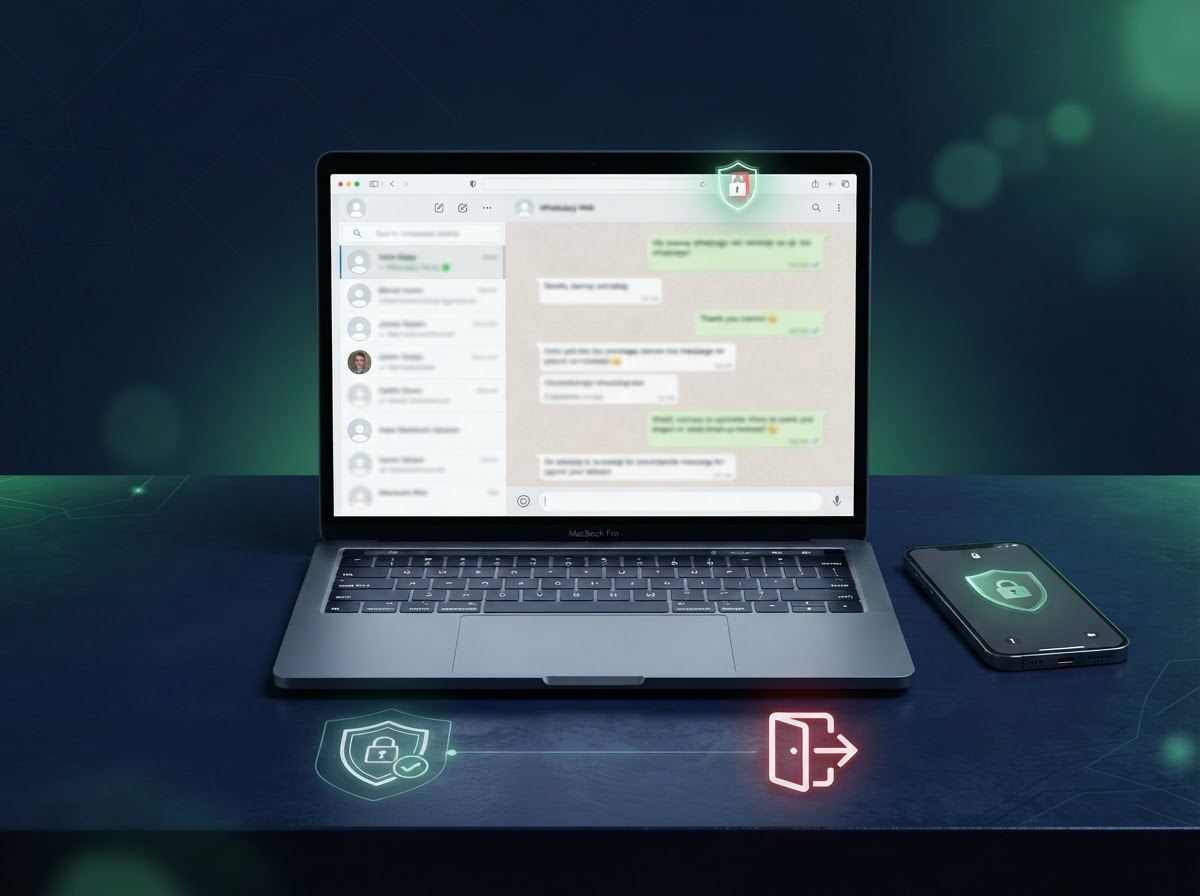
A WhatsApp Web tab you forgot about can let someone read your chats and message your contacts as you. Here is how to check your account in two minutes, close the doors you left open, and spot the scams that no logout habit will stop.
India’s cybercrime coordination centre, I4C, put out an advisory on this dated November 18, 2026. NDTV reported the core warning: an active WhatsApp Web session may, under certain circumstances, be misused to get into your account.
Here’s the thing. Nothing about that risk stops at a border. If you use WhatsApp on a work laptop in London, a library computer in Toronto or a hotel PC in Dubai, this applies to you.
The 2 minute check to do right now
Pick up your phone. Do this before you read the rest.
- Open WhatsApp. On iPhone, go to Settings, then Linked devices. On Android, tap the three dot menu, then Linked devices.
- Read every entry. Look at the browser or device name and when it was last active.
- Tap anything you don’t recognise or no longer use, then choose Log out.
- Not sure about an entry? Log it out anyway. Relinking your own laptop takes seconds.
- Repeat this once a week. Put it in your calendar.
WhatsApp’s own help page explains how to remove a device you don’t recognise.
Why a forgotten session is a problem
When you link a computer, it becomes part of your account. It keeps working even when your phone is switched off, as Hindustan Times explains. Encryption protects messages while they travel, but a linked device is one of the places they are meant to arrive.
Whoever controls that screen can read your messages, write as you, and see your contacts and groups. I4C also flags the next step: using your trusted identity for fraud and phishing. A message asking for money lands very differently when it comes from your number.
Closing the tab doesn’t log you out. WhatsApp does set limits on linked devices, including logging them out if your primary phone goes unused for 14 days. If you use your phone daily, don’t count on that to save you.
4 ways people get into your chats
| Route | What happens | Your best defence |
|---|---|---|
| Session left open | Someone uses a shared or office computer after you | Log out by hand, every time |
| Linking scam | You are tricked into scanning a QR code or entering a pairing code | Never link a device because someone asked |
| Malicious file | Malware on your computer takes over the live session | Don’t open unexpected files |
| Risky browser extension | A flaw lets a website read data from your open session | Update extensions and remove unused ones |
The scam that needs no shared computer
This is the one I want you to remember. In December 2025, researchers at Gen described a campaign called GhostPairing, first noticed in Czechia. A contact sends something like “I found your photo” with a link. A fake page asks for your phone number, then shows a code to type into WhatsApp to verify yourself.
That code links the attacker’s browser to your account. No stolen password, no SIM swap. Your phone keeps working as normal, and the stranger stays connected until you remove them.
In March 2026, Meta said WhatsApp will warn you when a linking request looks suspicious and show where it is coming from. Read that screen. A warning only helps if you stop.
The file from someone you know
On October 28, 2026, Singapore’s Cyber Security Agency warned about malware spreading through compromised WhatsApp accounts. The files can look like ordinary business documents. Some can hijack active WhatsApp Web sessions and send the same file to your contacts.
Be very careful with .exe, .iso and .zip files. If a file surprises you, call the sender before you open it.
The add-on you forgot you installed
A flaw in Adobe Acrobat’s Chrome extension, tracked as CVE-2026-48294, affected version 26.5.2.2 and earlier and could expose data across websites. Pakistan’s national cyber team warned it could reach an active WhatsApp Web session. Adobe has released a fix. Check that your browser has it.
Targeted attacks on high profile people
The FBI and CISA warned in March 2026 that Russian intelligence linked actors were phishing messaging app accounts, including by adding their own device as a linked device. Signal was the main target, but they noted similar methods work on other apps. The UK’s National Cyber Security Centre issued related advice for high risk individuals.
How to use WhatsApp Web safely, step by step
On your own computer
- Add a lock. In WhatsApp Web, open Settings, Privacy, then App lock and set a strong password.
- Lock your screen whenever you walk away. Windows key plus L on Windows, Control plus Command plus Q on a Mac.
- Update your operating system, browser and security software.
- Skip cracked software and downloads from sites you don’t trust.
On a shared or office computer
- Ask yourself if it can wait for your phone. Usually it can.
- If it can’t, open a private or incognito window on a computer you trust.
- Link your account and do only what you need.
- Log out from inside WhatsApp Web. Then close every private window.
- Check Linked devices on your phone and confirm the session is gone.
Incognito mode is a backup, not a shield. It clears the session when you close the private windows, but it does nothing against malware already on that machine.
On public computers
Don’t. That covers cyber cafes, kiosks, hotel business centres and borrowed laptops. No quick reply is worth it.
For work
I4C advises keeping government, company, financial and confidential information off WhatsApp Web. In its advice for high risk individuals, the UK’s NCSC says to use company provided messaging services for work where they are available.
If you run a small business, write a three line rule today: which devices may link WhatsApp, who checks the list each week, and what never gets sent there.
Lock down the account itself
- Two step verification. Go to Settings, Account, then Two-step verification. Meta announced in August 2026 that the old six digit PIN is being upgraded to a stronger password.
- Passkey. Go to Settings, Account, then Passkeys. It lets you sign back in with your face, fingerprint or screen lock.
- Strict Account Settings. Built for journalists, public figures and others who may be targeted. Find it under Settings, Privacy, Advanced. It tightens attachments, unknown callers and more, and limits how the app works.
Two step verification helps stop someone moving your account to another phone. It will not kick out a device that is already linked. Only logging it out does that.
Think someone got in? Do this in order
- On your phone, open Linked devices and log out of every session.
- Disconnect the suspect computer from the internet and run a security scan.
- Don’t link WhatsApp to that computer again until it is clean.
- Warn your contacts and groups. Tell them to ignore money requests and not to open files from you. A phone call works best for close contacts.
- Turn on two step verification and update your passwords from a clean device.
- Call your bank at once if you see any payment you didn’t make.
- Take screenshots and report it.
| Where you are | Where to report |
|---|---|
| India | 1930 helpline or cybercrime.gov.in |
| United States | Internet Crime Complaint Center (IC3) |
| United Kingdom (England, Wales, Northern Ireland) | Report Fraud, or 0300 123 2040 |
| Australia | ReportCyber |
| Singapore | ScamShield, helpline 1799. File a police report for losses |
| Elsewhere | Your national police or cybercrime unit |
Got a dodgy link before you tapped it? I covered how to run it through the Truecaller Scam Checker.
Honest limitations
- This advisory is not news of a WhatsApp breach. I4C’s published advice, as reported, names no specific attack or victim count.
- Logging out protects a computer you used honestly. It does not undo a scam that linked a stranger’s device elsewhere. Check the list on your phone.
- App lock guards the screen. Don’t treat it as protection against malware.
- Menu names and features can differ by country, app version and rollout stage. If your screen looks different, follow WhatsApp’s help pages.
The 5 rules worth saving
- Check Linked devices every week.
- Log out by hand. Closing the tab is not enough.
- No public computers.
- No QR scans or pairing codes on someone else’s request.
- No surprise files, even from friends.
My take: the boring habit wins here. You don’t need a new tool or a paid app. You need 20 seconds at the end of a session and one look at a list each week.
Sources
- NDTV: Centre flags WhatsApp Web hacking risk (November 23, 2026)
- The Indian Express: Avoid WhatsApp Web for government, sensitive work
- Hindustan Times: What the risks are and why to log out (November 24, 2026)
- Cyber Security Agency of Singapore: Malware campaigns spreading through WhatsApp
- UK NCSC: Messaging app targeting
- FBI and CISA: Public service announcement on messaging app accounts
- Gen: GhostPairing attacks
- Tenable: CVE-2026-48294
- Meta: New anti-scam tools (March 2026)
- Meta: New account security features for WhatsApp (August 2026)
- Meta: Strict Account Settings (January 2026)
- WhatsApp Help Center: About linked devices
- WhatsApp Help Center: Check and unlink devices
- WhatsApp Help Center: App lock
Know someone who stays logged in on the office computer? Send them this before someone else sits down at their desk.


Leave a Reply