
Every time you ask your AI coding assistant how the auth flow works, or which module handles a particular function, it goes back to square one. It re-reads the files. Every single time.
On a small project, that is barely noticeable. On a 50-file mixed-language repo with architecture docs, PDFs, and a few recorded design meetings sitting in the same folder? You either hit a context limit mid-question or burn through an eye-watering number of tokens just to get a basic orientation answer.
This is the problem Graphify is built to fix. And if you use Claude Code, Codex, Cursor, or any similar tool on a codebase with more than a handful of files, it is worth knowing this exists.
What Is Graphify?
Graphify is a free, open-source skill for AI coding assistants. You install it, type /graphify inside Claude Code (or the equivalent command in Codex, Cursor, OpenCode, Gemini CLI, and others), and it reads your project once. It builds a persistent knowledge graph from everything it finds: source code, SQL schemas, markdown docs, PDFs, architecture diagrams, screenshots, even audio and video files if you have them.
That graph lives on disk. Every query after that traverses the map instead of re-reading the raw files from scratch.
Here is the part that makes this genuinely interesting. On a 52-file mixed corpus of code, papers, and images, Graphify’s creators report an average query cost of roughly 1,700 tokens against the graph versus 123,000 tokens reading the raw files directly. That is a 71x reduction. The number is self-reported and not yet independently benchmarked, so treat it as directional rather than a guarantee. But the underlying mechanism is architecturally sound, and the pattern holds: you pay for precision, not orientation.
How It Actually Works
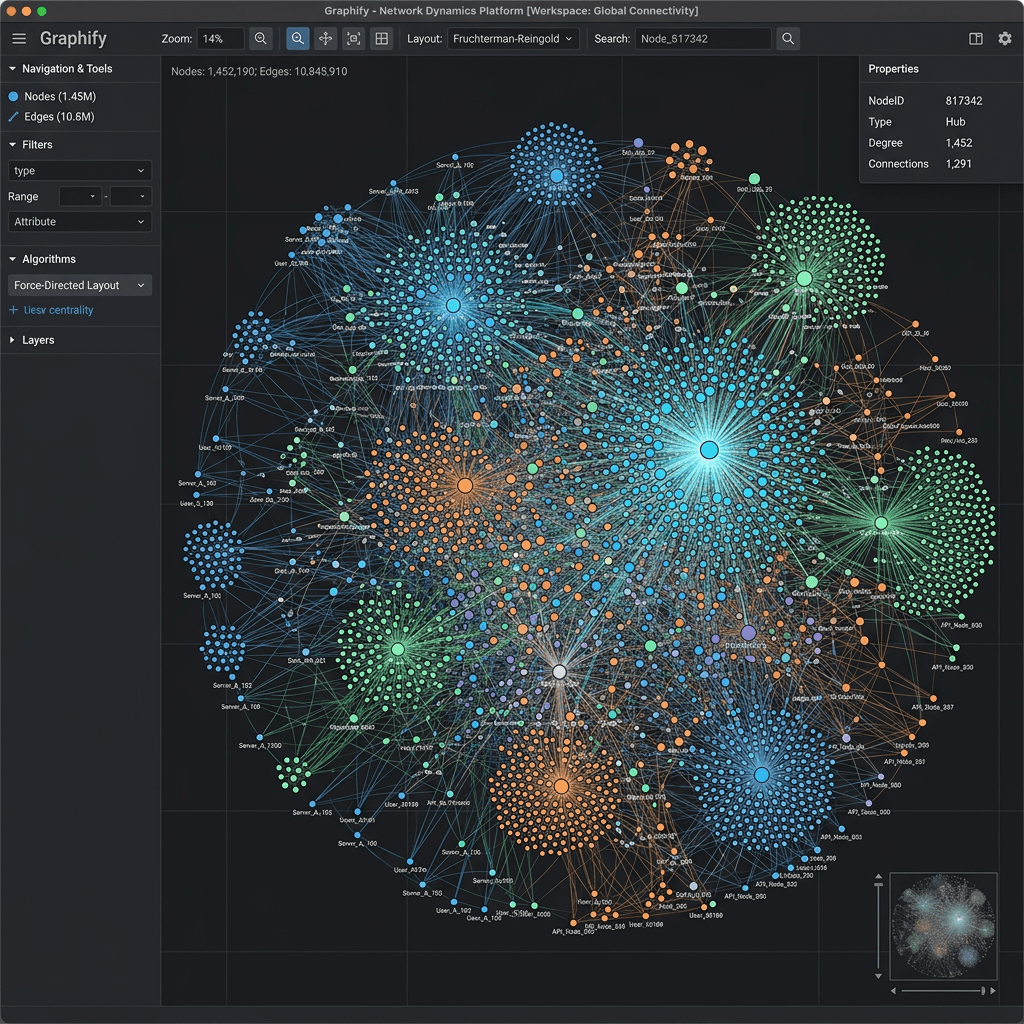
The graph is not just a list of files. It is a structured map of relationships.
Every node is a concept: a class, a function, a design decision, a section from a paper, or an element from a diagram. Every edge is a relationship: calls, imports, rationale_for, semantically_similar_to. When your assistant needs to answer a question, it traverses those edges to the relevant corner of the map instead of loading everything.
What sets Graphify apart from standard RAG (retrieval-augmented generation) is that it preserves structural information. Vector search tells you what is similar. A knowledge graph tells you who calls whom, which module depends on which, and why something was built the way it was. Those are different questions, and the second set matters a lot once your codebase gets complex.
Every edge in the graph is tagged as one of three types: EXTRACTED (found directly in the source), INFERRED (a reasonable inference, with a confidence score), or AMBIGUOUS (flagged for your review). You always know what was discovered versus what was guessed. That transparency is not common in tools like this.
One important privacy note worth flagging upfront: Graphify does not send your raw source files anywhere. It uses the credentials already configured in your AI platform environment and makes no network calls during graph analysis itself. Your AI provider (Anthropic, OpenAI, etc.) sees document and image content during semantic extraction, under your existing API agreement with them, but Graphify itself collects nothing, has no telemetry, and runs no relay server.
What It Supports
Graphify works with a wide range of file types and platforms, which is one of the reasons it has picked up attention quickly.
File types it handles:
- Source code in 25+ languages including Python, JavaScript, Go, Java, and more
- SQL files, with AST-based extraction of tables, views, functions, and foreign key relationships
- Markdown and documentation files
- PDFs and research papers
- Screenshots, diagrams, and whiteboard photos
- YAML and config files (Kubernetes, Helm, Kustomize)
- Video and audio files (transcribed via Whisper, optional install)
AI coding assistants it works with:
- Claude Code
- OpenAI Codex
- OpenCode
- Cursor
- Gemini CLI
- GitHub Copilot CLI
- VS Code Copilot Chat
- Aider
- Factory Droid, Trae, Kiro, Hermes, and others
You need Python 3.10 or higher and one of the supported assistants configured. No Neo4j, no separate server, no cloud dependency. It runs locally.
How to Get Started: Step by Step
Here is the practical walkthrough for getting Graphify running on your project.
Step 1: Install Graphify
The PyPI package is named graphifyy (with two y’s). Other packages named graphify on PyPI are not affiliated with this project.
The recommended install method for Mac and Linux:
uv tool install graphifyy && graphify install
Or with pipx:
pipx install graphifyy && graphify install
Or plain pip:
pip install graphifyy && graphify install
Step 2: Navigate to your project folder
Open your terminal and change into the root directory of the project you want to graph.
cd /path/to/your/project
Step 3: Run the build command
Inside Claude Code, type:
/graphify .
In Codex, the equivalent is:
$graphify .
Graphify will read your files and build the graph. On a first run, this takes some time depending on your project size. This is the upfront cost. Every subsequent query benefits from it.
Step 4: Check your output folder
Graphify writes a graphify-out/ folder in your project directory. Inside it you will find:
- graph.html: an interactive visual of your knowledge graph
- GRAPH_REPORT.md: a plain-English one-page summary of the most connected nodes, community structure, and notable connections
- graph.json: the persistent graph file that subsequent queries read from
Open graph.html in your browser and spend a few minutes looking at it. The nodes with the most connections are the parts of your codebase that touch everything else. Changes to those propagate the furthest. That is useful information independent of AI tooling.
Step 5: Set up the always-on hook (Claude Code)
For Claude Code specifically, Graphify installs a PreToolUse hook into your settings.json. Before every Glob or Grep call, Claude sees a prompt telling it the knowledge graph exists and to read GRAPH_REPORT.md for structure before searching raw files. This is what makes the efficiency gain automatic rather than something you have to remember to trigger manually.
Step 6: Query the graph
Once set up, you can ask your assistant questions as normal. For more precise, edge-level traversals, the explicit CLI commands are:
/graphify query
/graphify path
/graphify explain
These read directly from graph.json and return results with relation type, confidence score, and source location for each edge.
Step 7: Keep the graph current
Two options here. You can set up Git hooks, which rebuild the graph automatically after every commit and branch switch:
graphify hook install
Or you can run watch mode in a background terminal, which triggers instant rebuilds on file saves:
/graphify ./raw --watch
For most projects, Git hooks are the simpler starting point.
What You Get Out of It
Beyond the token savings, there are a few practical benefits worth calling out.
Session continuity. The graph persists between sessions. You are not starting from zero every time you open a new conversation. Your assistant already knows the structure of your project.
Architecture visibility. The visual graph shows you which files are the most connected nodes, what the creator calls the Grand Central Stations of your codebase. Those are the files where changes propagate furthest. Knowing where they are is genuinely useful for code review and planning.
Multi-modal by default. A diagram node can connect to a code class node and a paper section node in the same graph. If your project includes architecture decision records, research papers, or whiteboard photos alongside your source code, all of that gets woven into one queryable structure.
No vendor lock-in. It is MIT-licensed, runs locally, and works with whichever assistant you already use.
Where It Falls Short
Worth being honest about the limits.
The first graph build adds time upfront before any productivity gains show up. On a large project, that initial run is not instant. If your codebase changes rapidly, you need to stay on top of rebuilds to keep the graph accurate.
For small repositories or projects that are mostly flat prose documentation, the overhead may not be worth it. Standard RAG will likely outperform graph traversal for open-ended semantic questions on simpler projects.
The 71x token reduction figure is self-reported. No independent benchmark against a common test set exists at the time of writing. The mechanism is sound, but your actual savings will depend on your corpus size, file type mix, and query pattern. Factor that in before treating it as a fixed number.
And like any knowledge graph, the output is only as good as the extracted relationships. If your source material is poorly structured or inconsistently documented, the graph will reflect that.
Who This Is Actually For
Graphify is most valuable if you fall into one of these situations:
- You use Claude Code, Codex, or Cursor on a repository with 50+ files and you are hitting session limits or burning tokens faster than expected
- You work on mixed-media projects where code, architecture docs, design PDFs, and recorded meetings live in the same folder
- You regularly ask cross-file architecture questions and your assistant keeps missing connections between files
- You are a technical researcher or writer managing a large folder of notes, papers, and diagrams that you want to query intelligently
- You need session continuity across days of work on the same codebase
If you are working on a small project with a handful of files and simple architecture, the setup overhead is probably not worth it yet. Come back when the project grows.
Pricing
Graphify is free and open source, released under the MIT license. The software itself costs nothing. Your real costs come from your AI assistant’s API usage, which is exactly what Graphify is designed to reduce. There is no SaaS subscription, no usage tier, no credit system. You just install it and use it.
The project does have an enterprise layer called Penpax in development, which applies the same graph approach to your entire working context across meetings, emails, and files. That is a separate product with a waitlist, not part of the Graphify install.
If You Want Alternatives
These are the tools worth knowing about in this space:
- Sourcegraph: code search and navigation for large codebases, particularly strong for multi-repo environments
- Neo4j: general-purpose graph database for relationship modelling, useful if you want to build custom graph tooling
- Code2Vec: code representation and semantic understanding via learned embeddings
- Graphifi: broader knowledge graph and semantic data solutions for enterprise workflows
Graphify’s edge over most of these is the tight, out-of-the-box integration with AI coding assistants and the multimodal input support. It is also the only one in this list that runs entirely locally with no server required.
The Practical Bottom Line
If you are a developer using Claude Code or a similar assistant on a large project, the token costs of repeated file re-reading are real and they compound. Every session. Every query. Every architecture question that makes your assistant load the same ten files it loaded yesterday.
Graphify builds the map once and lets your assistant navigate by structure rather than grep. That is a meaningful shift in how AI-assisted coding actually works at scale, and the fact that it is free, local, and takes about five minutes to install makes it a very low-friction thing to try.
You can find the project and installation instructions on the GitHub repo and the full documentation at graphify.net.
If you work with a developer or a team that uses Claude Code on any sizeable project, send this their way. The token savings alone make the five-minute install worth it.
Are you already using knowledge graphs or any other context management approach in your AI coding workflow? Drop a comment below. Would love to hear what is actually working for people.


Leave a Reply