
You’re using Claude Code. You’re shipping things. The AI is doing its job. And then, at the end of the month, you look at your token usage and think: where did all of that go?
That’s not a minor question. It’s the question. Because right now, the only thing Claude Max shows you is a vague progress bar crawling toward a limit. No breakdown by project. No view of which tasks burned the most. No way to know if the AI kept looping on a failing test for 20 minutes while you weren’t watching.
That’s the exact problem CodeBurn was built to solve.
What Is CodeBurn?
CodeBurn is a free, open-source terminal dashboard for tracking exactly where your AI coding tokens are going. It was built by the AgentSeal team and it does something deceptively simple: it reads the session files that Claude Code, Cursor, Codex, and Gemini CLI already write to your local disk, and turns them into a live, interactive cost report.
No account. No login. No API key. No data leaves your machine.
It supports multiple AI coding tools on the same dashboard, so if you use Claude Code for some things and Cursor for others, you get one unified view instead of two separate blind spots.
It crossed 3,400 GitHub stars in its first week. That tells you developers had been waiting for this.
Why the Progress Bar in Claude Max Is Not Enough
Here’s the thing. The usage bar in Claude’s settings tells you what percentage of your limit you’ve consumed. That’s it. It doesn’t tell you which project burned 40% of your weekly budget. It doesn’t tell you whether your token spend happened during a focused debugging session or a 90-minute AI retry loop you forgot to interrupt. It doesn’t tell you which model you were on when things got expensive.
That’s not a knock on Anthropic. It’s just a gap that the developer community has now filled.
What CodeBurn actually shows you:
- Token and dollar spend broken down by project, model, and task type
- Which model ran up your bill, Opus, Sonnet, or Haiku, and what each actually cost
- Your usage across 13 classified task categories like debugging, refactoring, testing, and planning
- Per-session and per-day cost charts so you can spot expensive outlier days
- Cache hit rates, so you can see whether Claude is actually reusing cached context the way you expect
All of this from session files already sitting on your disk. CodeBurn doesn’t generate any of this data. It just makes what was already there readable.
The One-Shot Success Rate: The Feature That Stands Out
Most token tracking tools tell you how much you spent. CodeBurn also tells you why.
The one-shot success rate shows you, by activity type, the percentage of tasks where the AI got it right on the first try versus the tasks where it got stuck in an edit-test-fix retry loop. That loop is often invisible. You ask the AI to fix a bug, it makes a change, the test fails, it tries again, fails again, loops five more times. You’re not watching. The tokens are burning.
A one-shot rate of 90% means the AI nailed it on the first attempt 9 out of 10 times for that category. A rate of 40% means you’re paying for a lot of retries. That’s directly actionable. If your refactoring sessions have a low one-shot rate, you can change how you’re prompting for that type of task.
No other lightweight tool in this space tracks this by default.
How to Install CodeBurn (One Command)
Installation takes about 30 seconds. You need Node.js installed. If you’re using Claude Code, you almost certainly already have it.
- Open your terminal.
- Run this command:
npm install -g codeburn
- Once installed, launch the dashboard by typing:
codeburn
That’s it. The dashboard opens in your terminal, reads your existing session files, and shows you the breakdown immediately.
If you only want to look at one specific tool, you can filter it:
codeburn report --provider claudecodeburn report --provider cursor
You can also pull up just today’s usage or the current month:
codeburn todaycodeburn month
How to Find and Fix Token Waste With codeburn optimize
This is where it goes from interesting to genuinely useful.
Running codeburn optimize scans your recent sessions and checks for up to 11 different token waste patterns. Each finding comes with an estimated dollar and token saving, plus a ready-to-paste fix you can apply immediately.
The kinds of problems it catches:
- Files Claude is re-reading across sessions even when the content hasn’t changed
- Uncapped bash output that floods context with noise Claude doesn’t need
- Unused MCP servers that are still loading their tool schemas every single session
- Ghost agents, slash commands, and skills defined in your
~/.claude/folder but never actually used - Bloated
CLAUDE.mdfiles that burn tokens on every turn just to load
To run it:
codeburn optimize
Want to scope it to a specific time window:
codeburn optimize -p weekcodeburn optimize -p today
Findings come back ranked by urgency and include a health grade from A to F based on your overall setup. If you run it again after making fixes, it tracks each finding as new, improving, or resolved.
That’s not a token monitor. That’s a diagnostic tool.
What the Dashboard Actually Looks Like
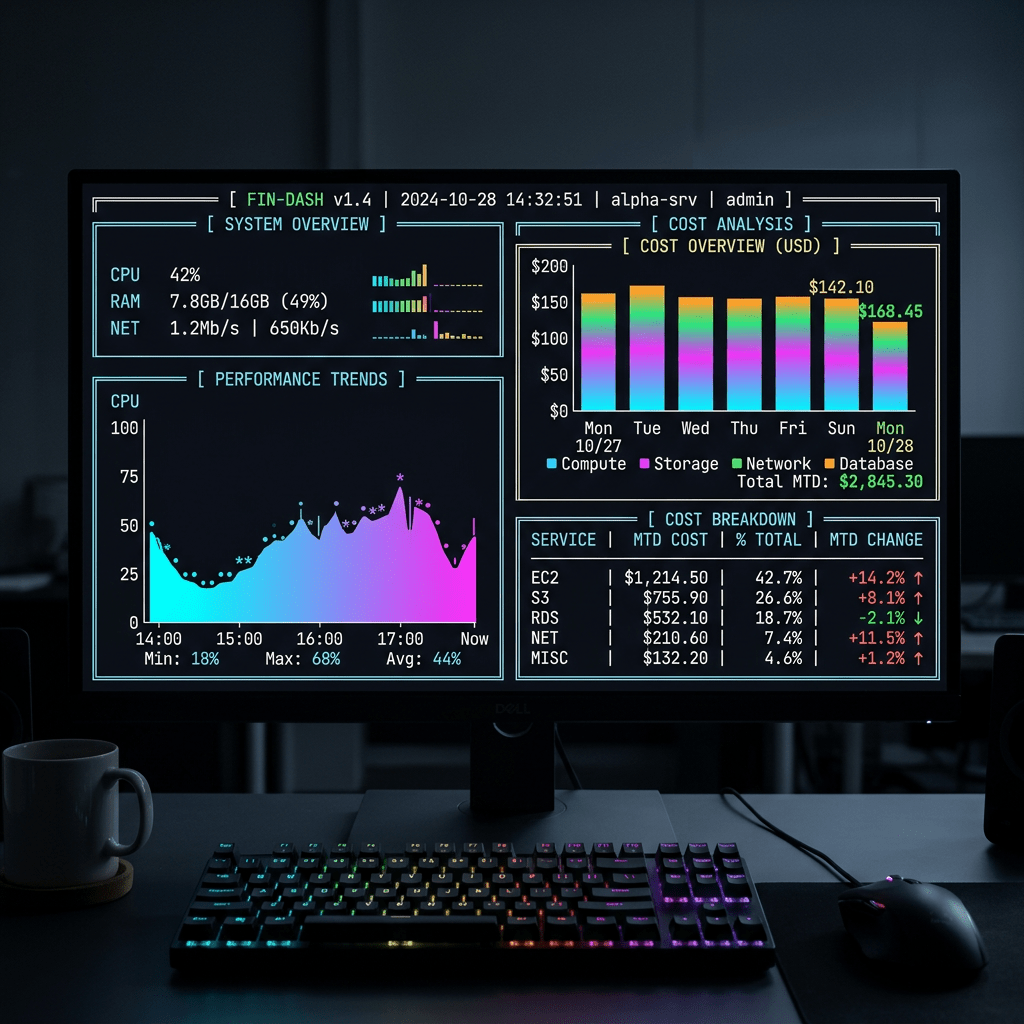
CodeBurn is a TUI, which stands for terminal user interface. It’s not a browser dashboard, and it doesn’t require you to open a separate app. It lives entirely inside your terminal.
The layout includes gradient bar charts, per-project panels, per-model panels, and a tool usage breakdown that shows things like which shell commands and MCP servers are showing up most often in your sessions. You can navigate with keyboard shortcuts, filter by provider, switch time periods with arrow keys, and jump into compare mode to stack two periods against each other.
If you’re on macOS, there’s also a SwiftBar menu bar widget so your current burn rate sits in your menu bar while you work.
Who This Is Actually For
If you’re using Claude Code or Cursor casually, a few sessions a week, CodeBurn is still useful but not urgent. The built-in usage bar probably covers your needs.
But if any of these apply to you, install it today:
- You’re on an API plan and paying per token
- You run autonomous agent loops that work while you’re away from your desk
- You’re using more than one AI coding tool and want to see total spend in one place
- You’ve had the experience of finishing a session and genuinely not knowing where the tokens went
- You’re managing developers and want to understand team-level burn before costs compound
The one thing worth being clear about: CodeBurn shows you API-equivalent costs even if you’re on a Max or Pro subscription. You’re not paying those exact per-token rates. But seeing the dollar equivalent is clarifying in a way a percentage bar is not. It turns an abstract limit into a concrete number you can act on.
A Quick Reference: Useful CodeBurn Commands
| Command | What It Does |
|---|---|
codeburn | Opens the live interactive dashboard |
codeburn today | Shows today’s usage summary |
codeburn month | Shows the current month’s breakdown |
codeburn report | Full report for the last 30 days |
codeburn optimize | Scans for token waste patterns and shows fixes |
codeburn compare | Side-by-side comparison between two time periods |
codeburn export | Exports your data to CSV or JSON |
codeburn --provider claude | Filters any command to Claude Code only |
The Real Value Here
You can’t optimize what you can’t see. That’s true in budget planning, in fitness, and it’s true in AI coding. The developers who get the most out of Claude Code aren’t necessarily the ones spending the most tokens. They’re the ones who know where the tokens are going and have adjusted their workflow accordingly.
CodeBurn gives you that visibility in under a minute. It’s free. It’s local. And the community has clearly been waiting for it.
Get it at github.com/getagentseal/codeburn.


Leave a Reply