
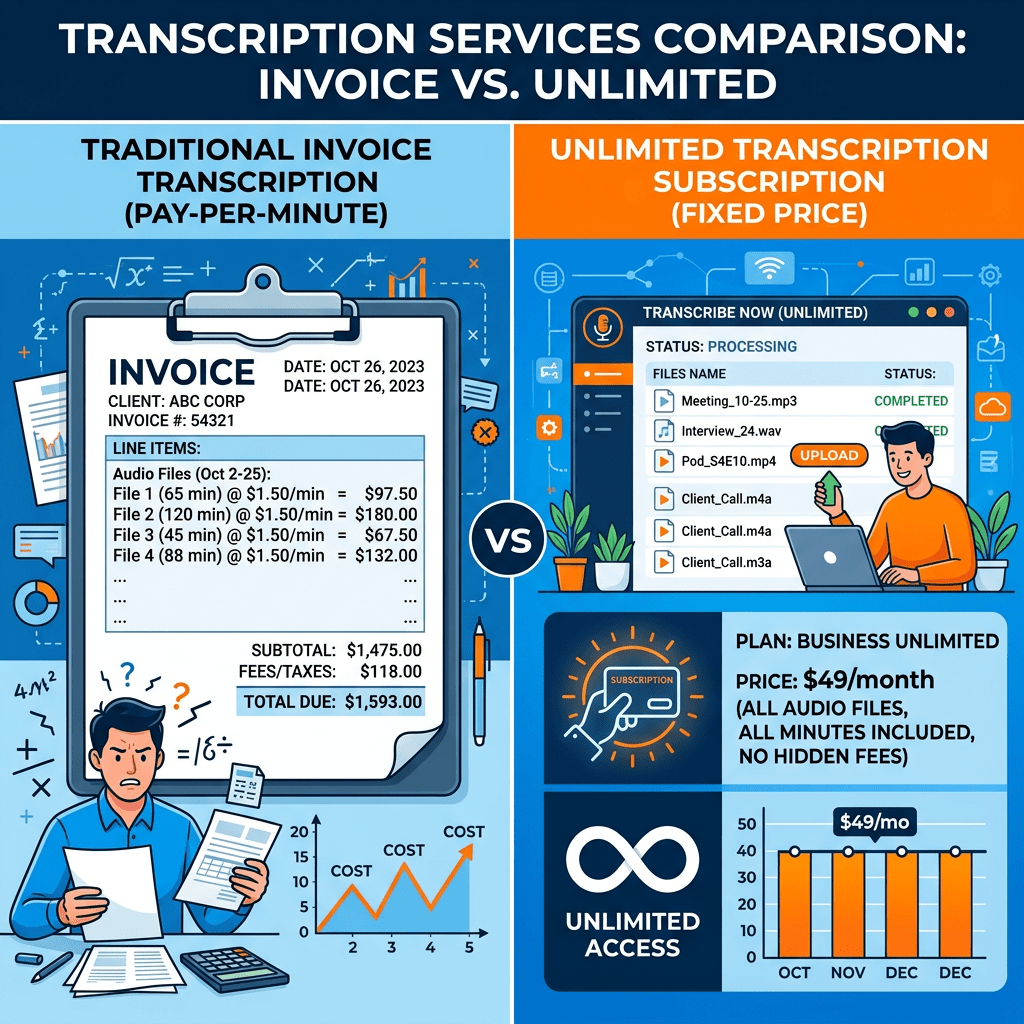
Most transcription tools charge you by the minute. That sounds harmless until you actually do the math. A single 90-minute interview at $0.25 a minute costs $22.50. Transcribe ten of those in a month and you have spent $225 on text you could have typed yourself if you hated your weekends. The per-minute model punishes exactly the people who transcribe the most: journalists, researchers, podcasters, course creators, and anyone drowning in recorded meetings.
TurboScribe went the other way. One flat fee, no meter running in the background, transcribe until your fingers fall off. That single pricing decision is why it keeps showing up in “best transcription tool” lists, and it is the main reason to care about it.
Here is the honest breakdown: what it does well, where it quietly disappoints, what it actually costs, and whether the unlimited promise holds up once you push it hard.
What TurboScribe Actually Is
TurboScribe is an AI transcription service that turns audio and video into editable text. You upload a file, it spits out a transcript with timestamps and speaker labels, and you export it however you need it. Nothing exotic on the surface.
Under the hood, it runs on OpenAI’s Whisper, the open-source speech-to-text model that powers a large share of the transcription tools you have heard of. That matters more than the marketing lets on. Because Whisper is open and widely used, the raw transcription quality between TurboScribe and most of its rivals is broadly similar on clean audio. The model is not the moat.
What sets TurboScribe apart is the stuff built around the model: the flat unlimited pricing, the batch workflow, and the post-processing that handles formatting, speaker separation, and translation. It was built by Leif, a former Meta AI engineer, as a lean operation rather than a VC-funded marketing machine, and that focus shows. It does one thing, file-based batch transcription, and does it without trying to also be your meeting notetaker, your CRM, or your video editor.
The Thing That Makes It Different: Flat Unlimited Pricing
Let’s talk about the headline feature, because it is the whole pitch.
On the paid plan, there are no caps on total usage. You can transcribe hundreds of hours a month for the same price you pay to transcribe one. Each individual file can run up to 10 hours long and 5GB in size, and you can queue up to 50 files at once for batch processing.
For anyone with high volume, the savings are not subtle. Twenty hours of audio on a per-minute service like Rev’s AI tier would cost you around $300 a month. The same twenty hours on TurboScribe costs $10 to $20 total, depending on how you pay. The more you transcribe, the more absurd the comparison gets.
That is the deal. Now let’s pressure-test it.
What “Unlimited” Really Means (Read This Before You Subscribe)
Here’s the thing most reviews skip. “Unlimited” is true in spirit but not in the literal, run-it-24-hours-a-day sense.
There is a fair-use throttle. If you dump enormous batches back to back, you can hit a “try again later” wall and have to wait before the next large upload clears. TurboScribe’s own guidance frames this as uploading “larger batches every few days,” which is fine for normal heavy use and frustrating if you were planning to run an industrial transcription pipeline through a single $10 account. There is also no public API and no automation, so you cannot script your way around the queue.
The other rule is simple and strictly enforced: one person per account. Unlimited use is for individuals. Sharing a login is not allowed, and there is a separate team plan if you need seats for a group.
None of this is a dealbreaker for the vast majority of users. But if your honest answer to “how much will I transcribe” is “more than any human reasonably could,” go in with eyes open.
The Three Speed Modes Nobody Explains
TurboScribe gives you three transcription modes, and picking the right one saves you both time and cleanup.
- Whale: Maximum accuracy, slowest processing. This is the default, and the one to use for anything you will publish, quote, or rely on.
- Dolphin: Balanced speed and accuracy. Good for drafts you are going to edit heavily anyway.
- Cheetah: Fastest, lowest accuracy. Use it when you need the gist of something right now and do not care about a few errors.
The practical move: default to Whale for interviews and content, drop to Cheetah only when you are skimming a long recording to find the one section that matters.
Languages, Translation, and Subtitles
This is where TurboScribe genuinely shines for global users.
It transcribes spoken audio in 98+ languages, and it can translate transcripts or subtitles into 134+ languages. You can also transcribe speech in any supported language directly into English in one step, which is a quiet superpower for anyone working across borders.
For video creators, that means you can generate subtitle files in dozens of languages from a single recording, then export them straight into your editor. For researchers running multilingual interviews, or teams operating across regions, this removes an entire layer of manual work. If your audience is not all in one country, this feature alone separates TurboScribe from English-first tools like Otter.
Accuracy: The Honest Version
You will see accuracy numbers thrown around ranging from 95% to 99.8%. Treat all of them with a pinch of salt, because they describe a best-case scenario.
Here’s what is actually true. On clean, single-speaker audio, like a studio podcast or a well-recorded solo lecture, TurboScribe performs excellently and needs minimal correction. It handles accents and technical vocabulary well in those conditions.
Where it slips, like every Whisper-based tool, is on messy real-world audio: people talking over each other, heavy background noise, or group settings with similar-sounding voices. Speaker labeling works well when voices are clearly separated and degrades when guests interrupt each other. Background noise is the single most consistently flagged accuracy issue.
The fix is upstream, not in the software. Recording closer to the speaker or using a directional mic improves your transcript more than any setting inside the tool. If your audio is clean, you are golden. If it is not, budget time for a manual pass.
The Features That Actually Save You Time
Beyond the core transcription, a few things genuinely earn their place:
- YouTube and cloud imports: Paste a YouTube link and TurboScribe pulls the audio and transcribes it without you ever downloading the video. It also imports from Dropbox, Google Drive, and Vimeo.
- Speaker recognition: Automatic Speaker 1, Speaker 2, Speaker 3 labeling. Worth knowing that enabling it adds processing time, especially on long files.
- Built-in ChatGPT prompts: Generate summaries and glossaries from a transcript without leaving the platform. Handy for turning a one-hour meeting into a five-line recap.
- Export everywhere: DOCX, PDF, SRT, VTT, CSV, and TXT, so the transcript drops cleanly into Word, your subtitle workflow, or a spreadsheet.
- Privacy by default: Files and transcripts are stored encrypted, only you can access them, and you can delete them anytime. Payments run through Stripe, so TurboScribe never stores your card number.
Pricing, Plainly
No tiers to decode. There are exactly two.
| Plan | Price | What you get |
|---|---|---|
| Free | $0 | 3 transcriptions per day, each up to 30 minutes, 1 file at a time. All modes, speaker recognition, and all export formats included. |
| Unlimited | $10/month billed yearly ($120/year) or $20/month billed monthly | Unlimited transcriptions, files up to 10 hours / 5GB, 50 files at once, translation to 134+ languages, bulk exports, priority processing, and ChatGPT summaries. One person per account. |
The free tier is not a crippled demo. Three 30-minute transcriptions a day is genuinely enough for students transcribing the occasional lecture or anyone with light, irregular needs. Test your real audio on it before you pay for anything.
How to Transcribe Your First File in Under Five Minutes
The workflow is simple, but doing it in the right order saves cleanup later.
- Sign up at turboscribe.ai. No card needed for the free tier.
- Upload your file or paste a link. Drag in an MP3, WAV, MP4, or MOV, or paste a YouTube URL and let it pull the audio automatically.
- Pick your transcription mode. Choose Whale for anything important, Cheetah only when you are skimming.
- Select the spoken language. Set it manually rather than relying on auto-detect if you know it. This noticeably improves accuracy on accented or mixed-language audio.
- Turn on speaker recognition if it is a conversation. Skip it for solo recordings to save processing time.
- Hit transcribe and wait. Most files finish in a few minutes. You will get an email when it is ready, so you do not have to babysit the tab.
- Edit in the built-in editor. Fix any names, jargon, or misheard words. Click a word to jump to that moment in the audio and verify it.
- Export. DOCX for documents, SRT or VTT for subtitles, TXT for a clean copy-paste. For multilingual output, run the translation step before exporting.
That’s the whole loop. Once you have done it once, a 90-minute interview goes from a half-day of typing to a ten-minute review.
Where TurboScribe Falls Short
No tool is the right answer for everyone. Be clear-eyed about the gaps:
- It is not a meeting assistant. There is no bot that joins your Zoom, Meet, or Teams call to record live. TurboScribe transcribes files you upload, not conversations as they happen. If you want live capture, Otter or Fireflies are built for that.
- No API or automation. You cannot wire it into a pipeline. Everything happens through the web interface, by hand.
- The unlimited throttle is real. Massive back-to-back batches will make you wait.
- Messy audio still needs a human pass. The accuracy claims assume clean recordings.
- Support and cancellation friction. Some users report slow support replies and a fiddly cancellation flow, so set a calendar reminder before any renewal.
TurboScribe vs The Alternatives
If you are weighing options, here is how the main contenders line up in 2026.
| Tool | Pricing model | Best for |
|---|---|---|
| TurboScribe | Flat $10–$20/month, unlimited | High-volume file transcription, multilingual subtitles, batch uploads |
| Otter.ai | Free 300 min/mo; Pro from $8.33/month annual | Live meeting transcription with Zoom, Meet, and Teams bots. English-first. |
| Rev | $0.25/min AI, $1.99/min human | Human-verified accuracy for legal, medical, and high-stakes work |
| Sonix | Around $10/hour pay-as-you-go | Occasional, low-volume multilingual file transcription |
| Descript | Free tier; paid from $16–$24/month | Creators who want transcription and audio/video editing in one tool |
The pattern is clear. Rev wins when a human must verify every word. Otter wins for live meetings. Descript wins when the transcript is your editing timeline. Sonix wins for the occasional file when you do not want a subscription. TurboScribe wins on raw volume and price, full stop.
The Decision Matrix
Skip the agonizing. Match yourself to a line.
You transcribe a few files a week and hate subscriptions: Use the TurboScribe free tier. Three a day covers most light users for nothing.
You transcribe 5+ hours a week of files: TurboScribe Unlimited. At $10/month annual, it is the cheapest credible option for heavy file work, by a wide margin.
You work across multiple languages: TurboScribe or Sonix. The 134+ language translation is the differentiator.
You need live meeting notes, not file uploads: Otter.ai. TurboScribe does not join calls.
Every word must be legally accurate: Rev human transcription. Pay the premium, sleep at night.
You edit podcasts or video and want transcription baked in: Descript.
One Last Thing
The smartest way to evaluate TurboScribe costs you nothing. Run three of your actual files through the free tier, your real interviews or lectures, not a clean test clip. If the output needs barely any cleanup, the $10 annual plan will pay for itself the first month you transcribe more than an hour of audio. If your recordings are noisy and the transcript comes back rough, you just learned that for free, and you can fix your mic before spending a rupee or a dollar.
For high-volume, file-based, multilingual transcription, nothing else on the market touches its price. Just go in knowing what unlimited really means, and record clean audio so the AI has something good to work with.
If this saved you from another per-minute transcription bill, send it to the journalist, podcaster, or grad student in your life who is still paying by the minute. Their wallet will thank you.


Leave a Reply