
First, what a Claude Skill actually is
A Skill is a reusable package of instructions that teaches Claude how to do one specific job, the same way every time. Not a chatbot mode. Not a plugin in the traditional sense. Think of it like handing Claude a one-page playbook before a task: “format the report like this, follow these brand rules, create the Jira ticket like this.”
Claude reads the playbook only when the job calls for it. You do not repeat your instructions in every chat. Set the Skill up once and Claude pulls it in automatically whenever a matching task comes up.1
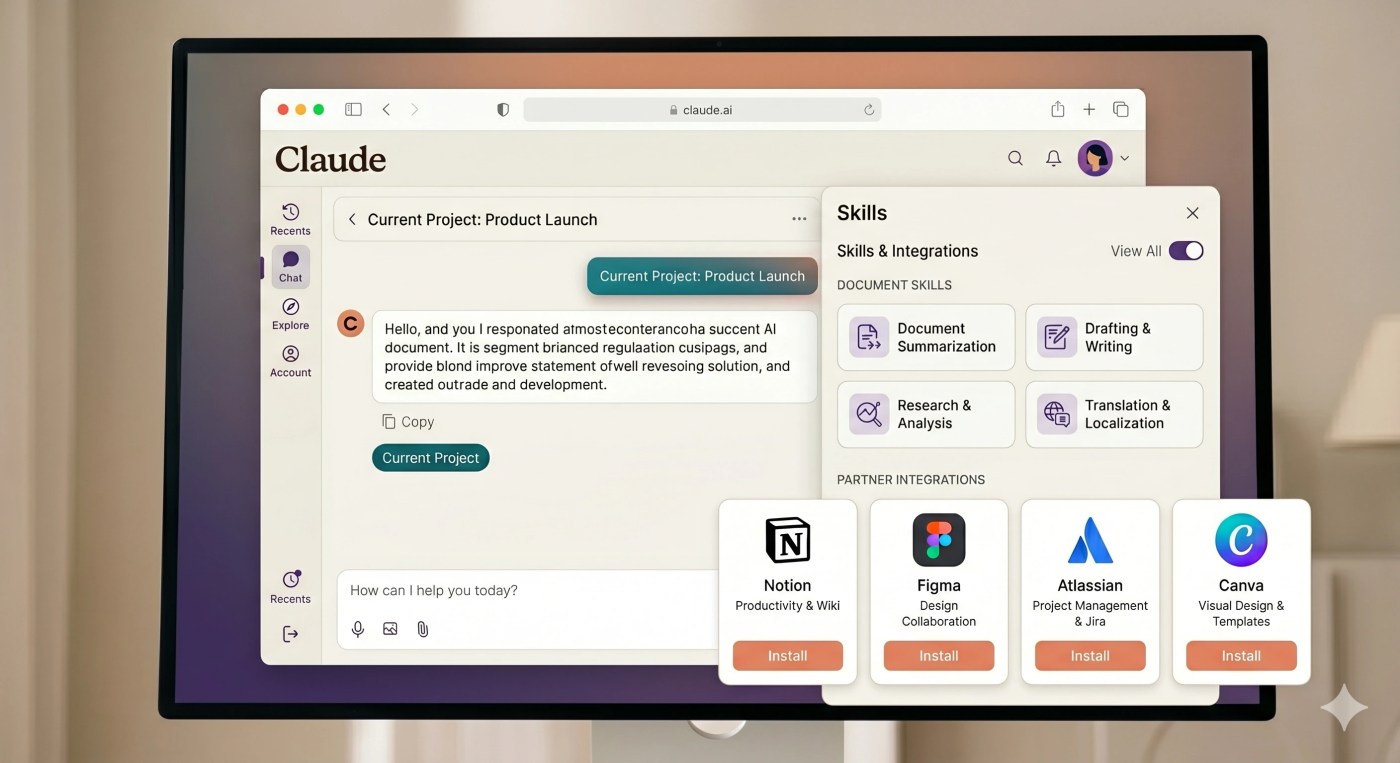
Anthropic launched Skills in October 2025 and added a full Skills Directory in December 2025, bringing in partner-built Skills from companies like Notion, Figma, Atlassian, Canva, Cloudflare, Stripe, and Zapier.2 The directory is available right inside your claude.ai account, and browsing it takes about 30 seconds.
Here is what the directory contains and the ten Skills worth switching on first.
The Skills Directory: what is in it
The directory has three types of Skills.
Anthropic Skills are built, tested, and maintained by Anthropic. These cover Excel, Word, PowerPoint, and PDF document creation. They switch on automatically once you enable code execution and show up in your Skills list without any installation step.3
Partner Skills are professionally built by companies whose tools Claude already connects to: Notion, Figma, Atlassian, Canva, Cloudflare, Stripe, Zapier, and others. You browse and install these from the directory in a few clicks.2
Custom Skills are ones you build yourself or your organisation deploys team-wide. Those are covered briefly at the end of this post.
Here are the ten Skills worth your attention first, split by what they actually do.
The 4 Anthropic Built-In Skills
1. Excel (XLSX): spreadsheets with live formulas, not pasted values
The Excel Skill creates and analyses real .xlsx files: formulas, conditional formatting, pivot tables, charts. Not a markdown table. Not a CSV. An actual Excel file you can open and edit.3
Best for: Finance teams, operations managers, consultants, students who live in spreadsheets but want AI to handle the formula-and-format work.
Try this: “Take this sales data and build a pivot summary by region. Flag anything that is below the monthly target.”
2. Word (DOCX): the deliverable that still runs the world
The Word Skill produces and edits .docx files with proper heading hierarchy, styles, tables, and tracked changes intact.3 A raw text dump is not the same thing, and clients notice the difference.
Best for: Consultants, lawyers, project managers, students, anyone whose final deliverable opens in Word.
Try this: “Turn these bullet notes into a formatted two-page proposal with a cover section, three recommendation headings, and a summary table.”
3. PowerPoint (PPTX): decks without the Sunday-night panic
The PowerPoint Skill builds editable .pptx decks with text, visuals, and actual slide layouts, not bullet-point walls.3 Pair it with the Canva Skill further down and your decks come out on-brand without any additional work.
Best for: Salespeople, trainers, founders pitching investors, anyone who builds a deck more than once a month.
Try this: “Build a 10-slide deck from this one-page brief. Title slide, three problem slides, three solution slides, a case study, and a clear ask.”
4. PDF: the most-used Skill for a reason
The PDF Skill creates, fills, edits, and extracts data from PDF files.3 PDFs are the default currency of business, and the ability to generate a clean one or pull numbers from one is what most non-developers want from AI.
Best for: Anyone generating reports, invoices, contracts, or scraping data from a statement without copy-pasting line by line.
Try this: “Pull every transaction over 500 from this PDF bank statement into a table.”
The 6 Partner Skills Worth Installing
5. Notion: Claude inside your workspace, not just talking about it
The Notion Skill, built by Notion, teaches Claude how to work within Notion properly: creating and updating pages, building databases, formatting content to Notion’s conventions.4 Without the Skill, Claude knows Notion exists. With the Skill, it knows how to actually operate inside it.
Best for: Teams that run their knowledge base, wikis, or project tracking in Notion.
Pair it with: The Notion MCP connector in the Connectors tab, which gives Claude live access to your workspace data. The Skill tells Claude how to work; the connector gives Claude what to work with.
Try this: “Create a project page for this brief, build a task database with status and owner columns, and add three starter tasks.”
6. Figma: from design spec to working code
The Figma Skill helps teams build higher-quality products by teaching Claude how to interpret Figma components, apply brand styles consistently, and produce code that actually matches the design. It is the Skill behind most serious Claude Code design-to-code workflows.
Best for: Designers, frontend developers, and product teams using Claude Code to turn Figma specs into real interfaces.
Pair it with: The Figma MCP connector for live design context.
Try this (in Claude Code): “Use the Figma Skill to build this component from the linked Figma frame. Match the spacing, typeface, and interaction states exactly.”
7. Atlassian: Jira tickets and Confluence pages, done properly
The Atlassian Skill brings Atlassian’s own workflow expertise into Claude: turning product specs into Jira backlogs, generating status reports, surfacing relevant Confluence knowledge, and triaging issues correctly.
Best for: Engineering teams, product managers, and project leads who spend too much time manually creating or updating tickets.
Pair it with: The Atlassian MCP connector to give Claude live access to your Jira and Confluence instances.
Try this: “Turn this product requirements document into a Jira backlog. Break it into epics and stories, estimate story points using our standard scale, and assign default labels.”
8. Canva: on-brand assets without opening a design tool
The Canva Skill teaches Claude how to work inside Canva, not just connect to it. Full multi-platform marketing campaigns, on-brand presentations, localised content, all from a single prompt.
Best for: Marketing teams, content creators, solo founders who need consistent branded output without a designer in the loop for every asset.
Pair it with: The Canva MCP connector so Claude can publish directly to your Canva workspace.
Try this: “Create a set of five Instagram posts for this campaign brief, using our brand colours and the Instagram Story format.”
9. Cloudflare: deploy AI agents and infrastructure from a chat
The Cloudflare Skill makes it possible to deploy AI agents and MCP servers onto Cloudflare from a conversation, described by Cloudflare’s own engineering team as “one-shot” deployment.4 If you are building production AI workflows, this is the Skill that closes the gap between “Claude wrote the code” and “it is live on the internet.”
Best for: Developers and technical founders building agentic workflows that need to run at scale on real infrastructure.
Try this: “Use the Cloudflare Skill to deploy this MCP server to Workers. Configure the routes, set the environment variables, and confirm it is live.”
10. Zapier: connect Claude to the 7,000+ apps it cannot reach directly
The Zapier Skill bridges Claude to the massive Zapier automation ecosystem.2 If a tool is not in the Skills directory yet, there is a decent chance Zapier can reach it. This is the Skill that makes Claude useful for automating workflows across older or niche software stacks.
Best for: Non-technical users who want Claude to trigger automations across tools without writing any code. Especially useful for operations and admin workflows.
Try this: “When I receive a new lead in the CRM, use Zapier to send a personalised intro email, add them to the follow-up sequence, and log the contact in the shared sheet.”
Quick reference: which Skill fits which person
| Skill | Type | Best for | Needs MCP connector? |
|---|---|---|---|
| Excel (XLSX) | Anthropic | Finance, operations, analysts | No |
| Word (DOCX) | Anthropic | Consultants, students, PMs | No |
| PowerPoint (PPTX) | Anthropic | Sales, pitches, training | No |
| Anthropic | Reports, forms, invoices | No | |
| Notion | Partner | Knowledge management teams | Yes, Notion |
| Figma | Partner | Designers, frontend developers | Yes, Figma |
| Atlassian | Partner | Engineering, project managers | Yes, Atlassian |
| Canva | Partner | Marketing, content creators | Yes, Canva |
| Cloudflare | Partner | Developers deploying AI infra | Optional |
| Zapier | Partner | Non-technical automation | Yes, Zapier |
Note: The directory is growing. Stripe and other partners have also published Skills. Check the directory in your account for the latest additions.
How to Install Claude Skills: Step-by-Step for Beginners
Skills are available on Free, Pro, Max, Team, and Enterprise plans. The install path is slightly different for the built-in Anthropic Skills and the partner Skills from the directory, so here is the full walkthrough.
Step 1: Turn on code execution (required for all Skills)
Skills run inside Claude’s code execution environment. Without this on, the Skills section stays greyed out and nothing else in this guide works.
Go to Settings > Capabilities and switch on Code execution and file creation. One toggle, done.
Step 2: Open your Skills list
Go to Customize > Skills. You will see the four Anthropic document Skills already listed here. Each has a toggle and a short description.
Step 3: Enable the Anthropic Skills
Flip the toggle next to Excel, Word, PowerPoint, and PDF. They are now active. Claude will reach for them automatically whenever you ask it to create or edit one of those file types. No further setup needed.
Step 4: Browse the directory for partner Skills
This is where the partner Skills live. In Cowork, click Customize in the left sidebar, then click the “+” button to open the unified directory. Click the Skills tab. You will see the full catalogue of partner Skills: Notion, Figma, Atlassian, Canva, Cloudflare, Zapier, and more.
Find the Skill you want and click Install. The Skill is now in your Skills list and enabled by default.5
Step 5: Connect the matching MCP connector (for partner Skills)
Most partner Skills work best when paired with the corresponding MCP connector, which gives Claude live access to your data in that tool. Go back to the directory, click the Connectors tab, find the matching service, and click Connect. Authenticate with your account.
Here is the pairing that matters most: if you install the Notion Skill, also connect the Notion connector. The Skill teaches Claude how to work in Notion. The connector gives Claude your actual Notion data to work with. One without the other is like giving someone a job description with no access to the building.
Step 6: Just describe your task, do not invoke the Skill
You do not type a command or activate a Skill manually. Describe what you need in plain English and Claude figures out which Skill applies. Ask it to “create a PowerPoint about last quarter’s numbers” and it reaches for the PPTX Skill automatically.
If it misses, be explicit: “Use the Atlassian Skill to turn this spec into Jira tickets.” That nudge is usually all it takes.
For Team and Enterprise: organisation-wide deployment
If you are an admin on a Team or Enterprise plan, you can skip the individual install step entirely. Go to Organisation settings > Skills, provision any Skill centrally, and it appears enabled by default in every team member’s Skills list. No one has to do the above steps themselves.
One safety rule worth keeping
Skills can include code and can instruct Claude to install software to finish a task. Anthropic is clear: only install Skills from sources you trust.
The Anthropic and partner Skills in the directory are reviewed before they are listed. If a colleague shares a Skill outside the directory, or you grab one from a random GitHub repo, read the files first. The two main risks are prompt injection (hidden instructions that hijack your task) and data leaks through sketchy package code.3 A two-minute read of the Skill folder is cheap insurance.
What I would do this week
- Enable code execution in Settings > Capabilities.
- Toggle on the four Anthropic document Skills. Run one real task with each: a report as a PDF, a proposal as a Word doc, a summary as a PowerPoint, a tracker as an Excel file. Compare the output to your usual hand-built version.
- Install the one partner Skill that maps to the tool your team uses most: Notion, Atlassian, or Canva. Connect its matching MCP connector. Give it one real task from your backlog.
- Once it clicks, build your own. Go to Customize > Skills > “+” > “Create skill,” describe what you want, and Claude helps structure it. Or upload a custom Skill folder as a ZIP file for something more specific to your team’s workflow.
The honest shortcut: you will not fully understand why Skills matter by reading about them. The moment a Skill quietly does 40 minutes of formatting work in under two minutes is the moment it becomes a permanent part of how you work. Pick the task that wastes the most of your time and start there.
If this helped you find one Skill that actually saves you time this week, send this to the one person on your team still rebuilding the same report from scratch every month.
Sources and further reading
1. Anthropic, What are Skills? (Help Center, March 31, 2026).
2. Anthropic, Skills for organisations, partners, the ecosystem (December 18, 2025). Partner Skills launch: Notion, Canva, Figma, Atlassian, Cloudflare, Stripe, Zapier.
3. Anthropic, Use Skills in Claude (Help Center, April 13, 2026).
4. Anthropic and partners, partner skill quotes from the December 2025 skills directory launch: Atlassian (Jira/Confluence workflows), Canva (campaign creation), Cloudflare (agent deployment), Figma (design-to-code).
5. Anthropic, Browse skills, connectors, and plugins in one directory (Help Center).


Leave a Reply