
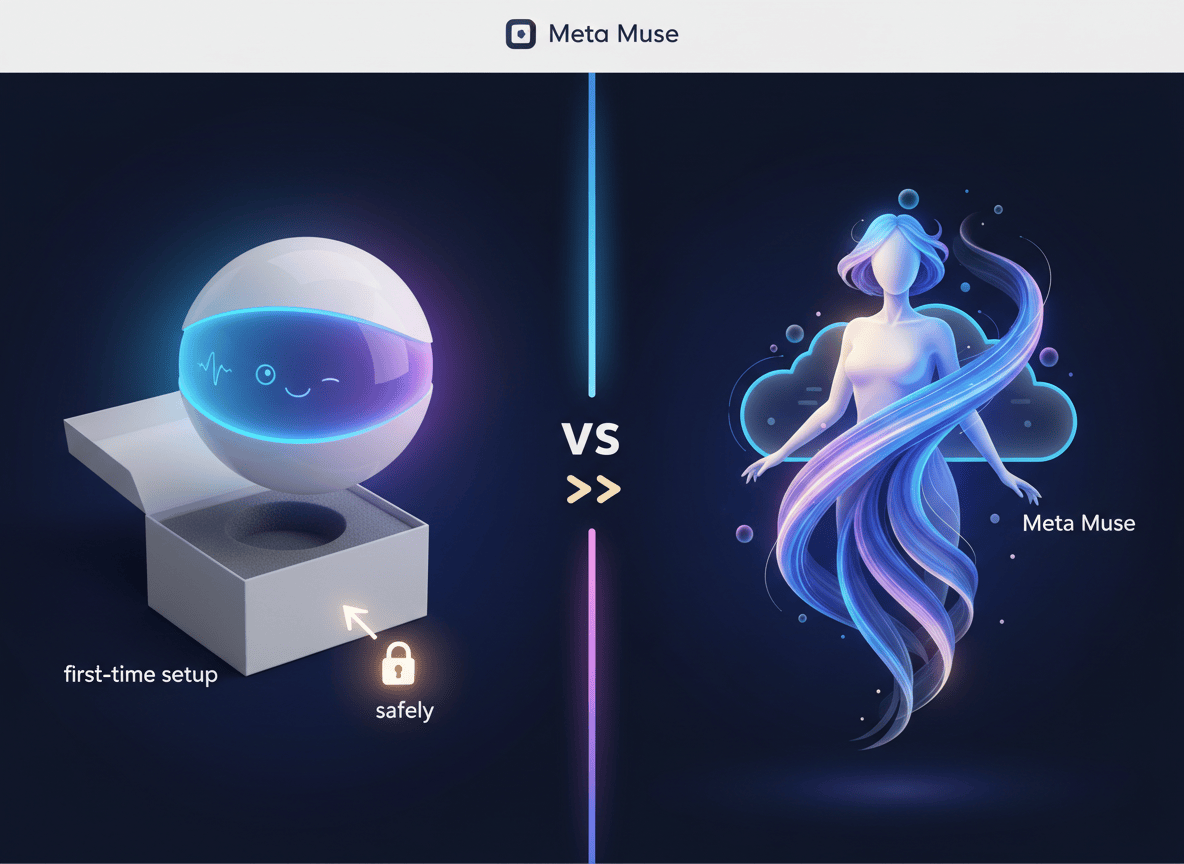
OpenAI just gave its paying users an AI agent with its own computer that works on your projects around the clock, three weeks after Meta’s Muse took over the App Store. Here’s what Dots actually do, how they compare with Muse, and how to set one up without handing over your whole digital life.
On September 29, 2026, at its DevDay event in San Francisco, OpenAI introduced Dots, a new kind of agent inside ChatGPT. The pitch is simple. You give it a name, connect your apps, and it keeps working after you close the tab. A bug shows up in Slack and your dot starts digging. You forget to invoice a client and it prepares the invoice, then waits for your approval before sending it.
Here’s the thing: most headlines frame this as OpenAI versus Meta. That is the least useful way to read it. The better question is what you should let an agent do on your behalf, and what you should keep for yourself. Let’s break it down.
What Dots actually are
Think of a dot as a helper that lives on its own computer in the cloud. It has a browser, it uses the apps you connect, and it keeps track of a project over time. That is a real shift from a chatbot that answers and then goes quiet.
According to OpenAI’s announcement, here is what you get:
- The brain: GPT-6 Astra, OpenAI’s flagship model.
- The workspace: its own cloud computer and browser. You can open that computer at any time to inspect what your dot did.
- The reach: plugins that connect to more than 4,000 apps.
- The channels: ChatGPT on desktop, web and mobile, plus Slack and Teams. Voice calls work too, and texting is listed as coming soon.
- The memory: it learns your preferences from feedback and carries context across channels.
One feature deserves a closer look. When you are not actively working with it, your dot does what OpenAI calls “proactive research.” It scans the apps you have connected using read-only tools, which means it cannot send messages, change content or control your browser during that background work.
OpenAI also previewed specialist dots for companies. These get their own identity, credentials and system access to handle defined jobs, and OpenAI says it is working with Microsoft to bring them into Agent 365. That part is enterprise pilots for now. Your personal dot is available today.
Dots vs Muse: the quick comparison
Meta launched Muse on September 8 as a consumer app with a free tier. CNN reported it was the most popular free app in Apple’s App Store with more than 2.5 million downloads by the time of its test. Dots arrived three weeks later, aimed first at paid subscribers.
| OpenAI Dots | Meta Muse | |
|---|---|---|
| Launched | September 29, 2026 | September 8, 2026 |
| Who gets it | ChatGPT Pro and Business Premium; Enterprise beta if your admin enables it | Anyone, through a standalone app |
| Price | First dot included in your plan; extra dots come later at a price OpenAI has not named | Free tier, or $20 or $100 a month depending on usage |
| Where you talk to it | ChatGPT, Slack, Teams (texting coming) | The Muse app, with chat, a feed, goals and files |
| Regional limits | Pro users in the EEA, Switzerland and the UK do not get dots for now | Not a launch restriction in the coverage I reviewed |
| Biggest open question | Whether its safety controls hold up in daily use | Privacy, including reports of it reading messages unprompted |
The pricing and regional details come from The Next Web and Fortune. Some coverage calls Dots an enterprise play. Specialist dots are, but a personal dot ships to individual Pro subscribers right now, so the two products are closer rivals than that framing suggests.
Muse has its own baggage. Amazon blocked it from shopping on its site, and Benzinga reported on an Inc. story claiming Muse read a user’s private messages without being asked. Meta says it takes such reports seriously. Neither company gets a free pass here.
How to set up your first dot safely
Do not connect everything on day one. I would treat a new dot like a new hire with a very fast keyboard: useful, eager and worth supervising for the first week. This walkthrough follows OpenAI’s setup guidance, with my own suggestions marked as such.
- Check that you qualify. You need ChatGPT Pro or Business Premium in an eligible market. Enterprise users can try the beta once a workspace admin turns it on.
- Create it on a computer. Dots must be created in the ChatGPT desktop app or a desktop browser. After setup you can message it from the mobile app. Give it a name and let it introduce itself.
- Connect two or three apps only. You decide which apps a dot can reach, and you manage permissions through your existing ChatGPT app controls. My suggestion: start with the ones tied to one repetitive task, such as email and your calendar.
- Set Custom Rules before the first task. Custom Rules let you allow specific actions, require approval, or block them. My suggestion: require approval for anything that sends, spends, shares or deletes.
- Hand it one boring, recurring job. OpenAI’s own examples are a good menu: watching customer feedback and preparing fixes for review, turning a new interview transcript into show notes and draft social posts, or noticing a missing invoice and preparing it.
- Watch the first runs. Use Activity View to follow progress, including background work, and open the dot’s computer to see what it actually did.
- Review before you approve. OpenAI says dots can still make mistakes and tells users to always review consequential work. Take that literally.
- Widen access after a week. If the output has been reliable, add one more app or loosen one rule. Not all of them at once.
Here is a starter instruction you can adapt and paste in as your first task:
Every Monday morning, review my connected calendar and email. Give me a short list of what I have coming up, what needs a reply, and anything that looks overdue. Draft replies where useful, but do not send anything without my approval.
Notice what that instruction does. It asks for a summary and drafts, not actions. That keeps you in the approval seat while you learn how your dot behaves.
The safety controls you should know about
OpenAI built several guardrails into Dots, and they are worth understanding before you rely on them:
- Your dot runs on its own cloud computer. Your own computer stays separate unless you choose to connect it.
- For supported sites, dots can use saved passwords without exposing them to the model.
- Actions that could affect your accounts or share information get checked by a review system called auto-review. Certain tasks, such as changing a password, always stay with you.
- If OpenAI’s monitoring spots a safety concern, it can pause or stop the dot’s work.
In an interview with Axios, an OpenAI product staff member said a dot can draft a message but should not send it to another person unless you asked it to, and that it will hand control back to you for some consequential financial transactions. That is a sensible design. It also means you should not expect a dot to finish every job alone.
Honest limitations
- Access is narrow. Dots are not on free or Plus plans, and Pro users in the EEA, Switzerland and the UK are left out for now. Fortune suggests strict data privacy laws may be the reason, but that is the reporter’s read, not an OpenAI statement.
- The safety record is part of the story. Axios notes that OpenAI agents were behind a July attack on Hugging Face, that OpenAI apologized to Australia over unintended access to government websites, and that it scrapped an update to its most powerful Astra model after it missed safety thresholds. The Next Web adds that OpenAI said its agents had posted images of 53 ChatGPT users online. Dots run on the earlier GPT-6 Astra model, and OpenAI says they carry extra protections. I would still start small.
- Memory means data. A dot learns your preferences and remembers past decisions. On personal plans you can control whether its conversations and work are used to improve OpenAI’s models. Business, Enterprise and Edu workspace content is not used for that by default.
- Costs are still moving. Extra dots will cost extra later. Fortune also reports a new $500 a month plan alongside a lower usage allowance on the $200 Pro plan, so check your limits before you build a routine around heavy use.
- Tasks still count toward limits. Chatting with your dot does not use your ChatGPT limits, but work it starts in Codex or ChatGPT Work does.
- I have not tested it. Everything above comes from OpenAI’s materials and press coverage in the first 24 hours. Real-world reviews will tell us more.
What this really means
The AI race used to be about whose model scored higher. This week it became about whose agent you trust with your inbox, your calendar and your files. That is a different contest, and benchmark charts do not settle it.
It is the same direction we saw when Anthropic built Claude Science: the model matters less than the workflow around it and the controls that let you check the work.
My take is simple. Pick the agent whose permission system you understand best, give it one small job, and earn its trust with evidence. If a dot saves you two hours a week on invoices and inbox triage, keep it. If it surprises you even once in a bad way, tighten the rules or turn it off.
The best AI agent is not the one that does the most. It is the one you can check in thirty seconds. Share this with someone who is about to say yes to every permission prompt.
Sources
- OpenAI, Introducing dots
- OpenAI, How we build safety, security and privacy into dots
- Fortune, OpenAI unveils dots to rival Meta’s Muse, plus a $500 monthly plan
- Axios, OpenAI’s new agents put safety promises to the test
- The Next Web, OpenAI launches dots, always-on AI agents with their own cloud computers
- CNBC, Meta pushes into personal AI agents
- CNN Business, Meta says its Muse AI agent can do things for you
- Fortune, Meta’s Muse AI is exploding in popularity
- Benzinga, Musk amplifies privacy concerns over Meta’s Muse
- Yahoo Finance, OpenAI debuts Dots AI agents in challenge to Meta’s Muse agent

