
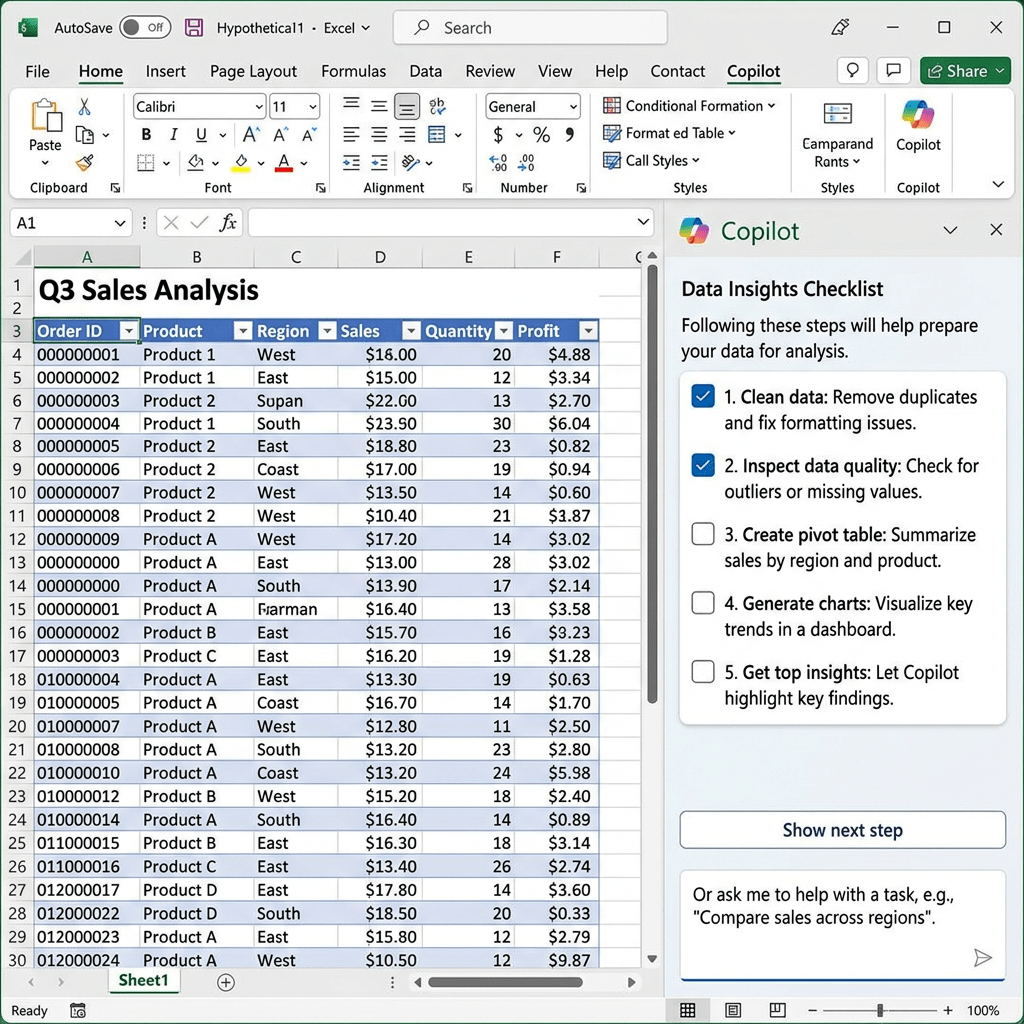
Your spreadsheet is doing its own edits now.
That is not a product tagline. On April 22, 2026, Microsoft made agentic Copilot the default experience inside Word, Excel, and PowerPoint for Microsoft 365 subscribers. Not a toggle you hunt for in settings. Not a beta program. The default.
And the numbers behind this launch are hard to dismiss. Word usage went up 52%. Excel went up 67%. User satisfaction in Excel jumped 65% in the first month of preview alone.
This is not Copilot suggesting a sentence for you to click “Accept” on. This is Copilot restructuring documents, rewriting formulas, rebuilding slide decks, and working through multi-step tasks on its own while you watch the sidebar tick off each step like a checklist.
Here is what changed, why it matters, and exactly how to start using it today.
What “Agentic” Actually Means (and Why It Is Different This Time)
The word “agentic” gets thrown around a lot right now. In this context, it has a specific meaning: Copilot can now plan a task, break it into steps, execute those steps directly inside your file, check its own work, and keep going until the job is done.
The older version of Copilot was a sidebar assistant. You asked it something, it produced text in a panel, and you decided what to do with that text. Every action still needed a human to execute it.
Agent Mode changes that. You describe what you want in plain language. Copilot works through the task on its own, applying edits directly to the canvas: adding formulas to cells, restructuring Word sections, animating PowerPoint slides, pulling in data from other files you reference. You watch. You review. You keep what you like.
Microsoft’s president of the Office Product Group, Sumit Chauhan, put it plainly in the official Microsoft 365 Blog post: Copilot creates the most value when it performs the work, not when it just suggests the next step.
What made this possible now, after two years of Copilot being in Office apps? Better reasoning models. The foundation models running behind Copilot got significantly better at following multi-step instructions without losing the thread. That is the unlock.
The Numbers That Tell the Real Story
Microsoft shared internal engagement data from the preview period. These are weekly usage figures per user, measured over 30 days before the general availability launch:
- Word: engagement up 52%, retention up 11%, satisfaction up 21%
- Excel: engagement up 67%, retention up 50%, satisfaction up 65%
- PowerPoint: engagement up 11%, retention up 36%, satisfaction up 25%
Excel pulling the hardest makes sense. It has always been the app where the gap between what most people can do and what the app is capable of is widest. Agent Mode gives non-expert users access to expert-level Excel capabilities: pivot tables, complex formulas, conditional formatting, charts, and scenario modeling, all from a plain-language prompt.
Separately, TechCrunch reported that Microsoft now has over 20 million paid Copilot users, and Morgan Stanley’s analyst called the figures “way ahead of most people’s expectations” on the company’s quarterly earnings call.
What Copilot Can Now Do in Each App
In Word
Copilot can draft, rewrite, restructure, and reformat a document in a single prompt. It works with Word’s native styles, handles heading hierarchies, and can pull content from other files or emails you reference in your instruction. Ask it to turn a rough set of bullet points into a polished two-page customer brief and it will write the whole thing, apply headings, and format it to match your document’s existing style.
The Microsoft Support page for Agent Mode gives a worked example: “Draft a 2-page customer brief that summarizes [initiative], outlines the value for [audience], and includes a checklist for the first 30 days.” One prompt. A finished document.
In Excel
This is where Agent Mode is doing the heaviest lifting. Copilot can now edit your workbook directly: adding formulas, building tables, creating charts, and running scenario models. It also has integrated web search, so it can pull in external data without you having to leave the app.
You can also choose which AI model handles the editing. Microsoft 365 Copilot in Excel now supports both OpenAI and Anthropic models, so you can match the model to the task at hand. GPT-5.4 and Claude Opus 4.6 are both rolling out as options.
One practical example from Microsoft’s own documentation: “Create an annual financial close report for a bike shop, including a breakdown of product lines across variance to budget and year-over-year growth. Use standard financial formatting and best practices.” Copilot builds the whole workbook.
In PowerPoint
Agent Mode in PowerPoint handles slide creation, design updates, and content restructuring. It can update branded templates, build new slides, apply animations, and pull context from your existing work files or web sources to fill in content. PowerPoint’s rollout started on web for Microsoft 365 Copilot users, with Windows and Mac desktop coming in the months after launch.
A worked prompt from Microsoft: “Create a 7-slide executive brief with a title slide, 3 slides of key insights, 2 slides of risks and mitigations, and a final next-steps slide. Use a clean enterprise style and include short presenter notes on each slide.”
Who Gets This and What It Costs
Agent Mode is available on the following plans:
- Microsoft 365 Copilot (the business add-on, currently $30/user/month on top of a base M365 license)
- Microsoft 365 Premium
- Microsoft 365 Personal and Family
If you are on a business plan with the Copilot add-on already activated, you do not need to buy anything. The upgrade is automatic.
The free web versions of Word, Excel, and PowerPoint do not include Agent Mode.
One requirement worth knowing: your files need to be saved to OneDrive, OneDrive for Business, or SharePoint. Agent Mode requires cloud-backed files to track multi-step changes with version history. If you try to use it on a file saved only to your local desktop, you will see a “Move to OneDrive” prompt before it will proceed.
How to Start Using Copilot Agent Mode Today (Step by Step)
Before anything else, check that you are on the right software version. Agent Mode requires Current Channel or Monthly Enterprise Channel builds from April 2026 onward. Semi-Annual enterprise channels get it a few weeks later.
Step 1: Update your Office apps.
On Windows: open Word, Excel, or PowerPoint, go to File > Account > Update Options > Update Now.
On Mac: go to Help > Check for Updates, or use the Microsoft AutoUpdate utility.
Step 2: Open a file saved to OneDrive or SharePoint.
Agent Mode will not engage on locally stored files. If your file is on your desktop, you will see a prompt to move it to the cloud first. Do that before continuing.
Step 3: Open the Copilot pane.
Click the Copilot icon in the ribbon (top right in most apps). The updated pane will show the Agent Mode interface as the default experience. You do not need to toggle anything on.
Step 4: Enable editing.
Inside the Copilot pane, you will see an “Allow editing” toggle. This is what gives Copilot permission to make direct changes to your document. Turn it on. (If you want Copilot to only provide information without touching the file, leave it off and use Chat Only mode instead.)
Step 5: Give Copilot a clear, specific goal.
Do not ask it vague things like “improve my document.” Be specific about what you want the output to look like. The more context you give, the better the result. Examples:
- Word: “Restructure this document into three sections: Problem, Solution, and Next Steps. Add a summary paragraph at the top. Keep the tone professional but direct.”
- Excel: “Create a budget tracker with monthly columns for January to December, category rows for Salary, Rent, Utilities, Food, and Miscellaneous, and a totals row at the bottom. Add conditional formatting to flag any month where spending exceeds 80% of income.”
- PowerPoint: “Create a 5-slide investor update deck. Slide 1: company overview. Slides 2 and 3: key metrics from last quarter. Slide 4: risks. Slide 5: what we need. Use a clean, dark-background design.”
Step 6: Watch the sidebar and review each step.
Copilot shows a sidebar that lists each action it is taking, like a checklist being ticked off in real time. You can see exactly what it is doing. When it finishes, review the changes before accepting them.
Step 7: Accept, reject, or iterate.
You are always in control. Keep what works, reject what does not, and give Copilot a follow-up instruction to refine anything that missed the mark.
A Note on What It Cannot Do (Yet)
Agent Mode works best when you already have a clear picture of what you need. Open-ended prompts like “make this spreadsheet better” do not give it enough to work with. Microsoft’s own guidance says the feature is strongest for formatting, data transformation, restructuring, and building visuals, not for open-ended brainstorming or creative work where the goal is undefined.
Cross-application workflows, such as pulling data from an Excel file directly into a PowerPoint deck in a single command, are on the roadmap but not fully wired up yet. You can reference other files in your prompts, and Copilot will use them as context, but you still navigate between apps manually for now.
Microsoft has confirmed that Agent Mode will expand to Outlook, Teams, and OneNote later in 2026, which is when the cross-app, end-to-end workflow story gets more complete.
The Bigger Picture: Your Office Suite Just Became an Agent Platform
Here is what this really means, beyond the feature list.
Microsoft just moved the Office suite from “software you operate” to “software that operates on your behalf.” That is a significant shift in how you need to think about what productivity software is for.
The competition is watching this closely. Google has the Gemini Enterprise Agent Platform running across Docs, Sheets, and Gmail. OpenAI shipped Workspace Agents for ChatGPT. The race to own your daily working files has gotten very real.
What Microsoft has right now that the others do not is depth inside the apps. Copilot does not just generate content and paste it in. It understands the native structures: pivot tables in Excel, animation timelines in PowerPoint, citation fields in Word. That is the difference between a smart assistant and something that actually belongs inside the tool.
The 67% Excel engagement jump is a signal. People are not just trying Agent Mode once and forgetting it. They are coming back.
If you have a Microsoft 365 subscription and have not opened the Copilot pane in the last month, now is the time to do it. The tool you think you know has been substantially upgraded.
What would you put Copilot Agent Mode to work on first? Drop it in the comments below.


Leave a Reply